This article explains how to break a single Job into multiple Tasks and schedule those Tasks across different days or crews.
Tasks are useful when work needs to happen over multiple days or when different parts of the Job are handled by different crews.
Note: The Task feature is available to users with the Manage Jobs permission.
What It Means to Break a Job Into Tasks
A Job represents the overall work being done at one location.
Tasks are individual pieces of work within that Job.
Each Task:
Represents a specific scope of work
Can be scheduled on its own day
Can be assigned to a specific crew or user
All Tasks still roll up into a single Job for tracking and reporting.
Why Contractors Use Tasks
Contractors use Tasks to better organize real-world work, such as:
Jobs that span multiple days
Work that requires different crews
Jobs with different scopes, like sealcoating one day and striping another
Using Tasks helps crews know what work they are responsible for.
Create a Job With Multiple Tasks
For jobs with multiple service items, the service items can be broken out into multiple Tasks.
Access a Job that needs to be scheduled and broken into Tasks, then open the Tasks tab from the Job details view.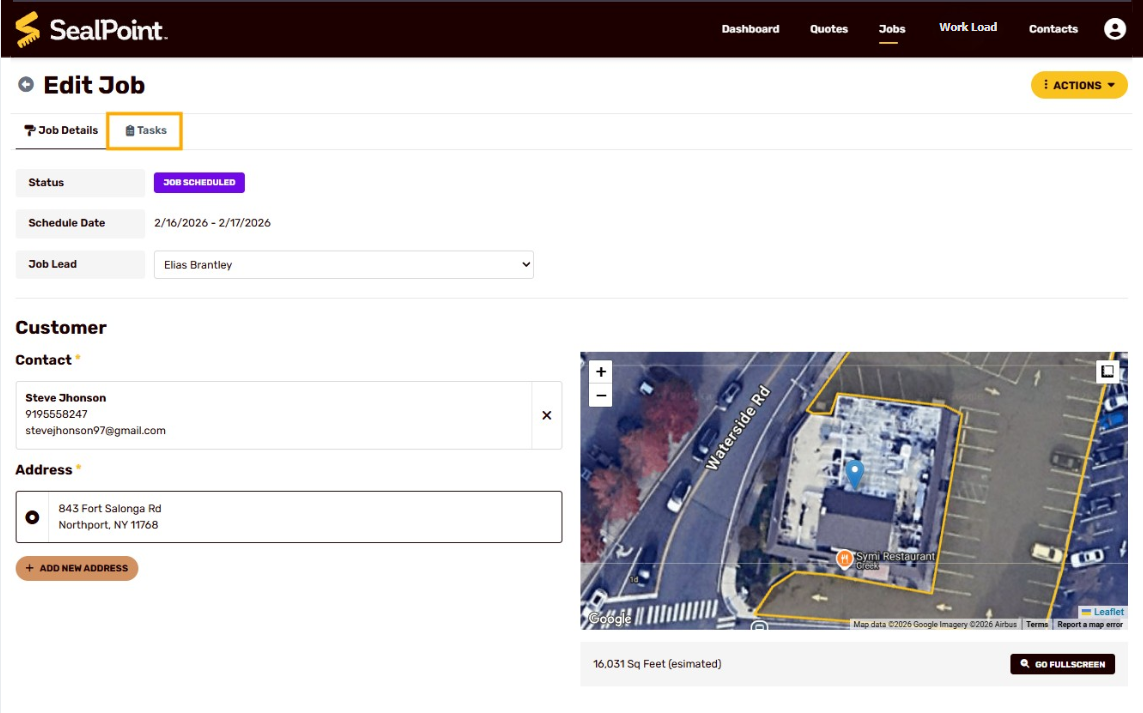
Schedule Tasks Across Different Days
Each Task can be scheduled independently.
This allows you to:
Schedule Day 1 work separately from Day 2 work
Plan multi-day Jobs without creating multiple Jobs
For example, prep and sealcoating work can be scheduled on the first day, while striping is scheduled for a later date.
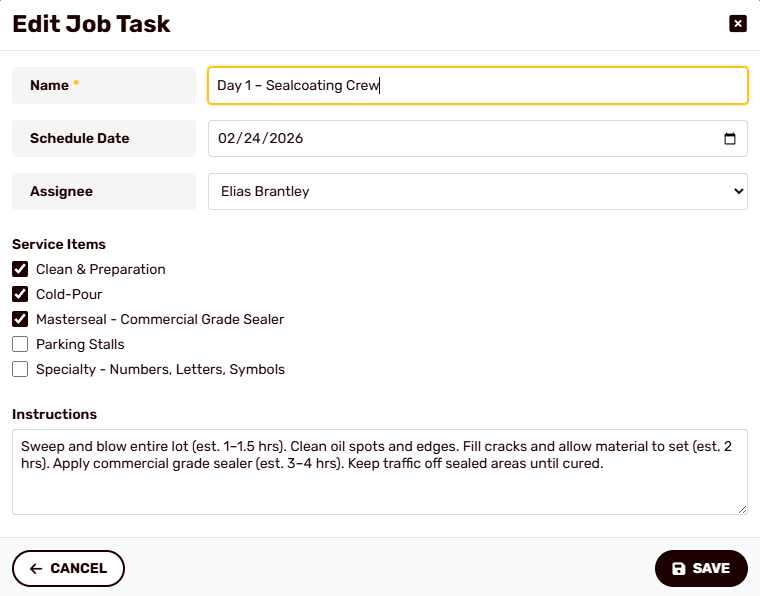
Each Task can be named clearly so it reflects the actual work being done (for example, “Crack Filling” or “Line Striping – Parking Stalls”).
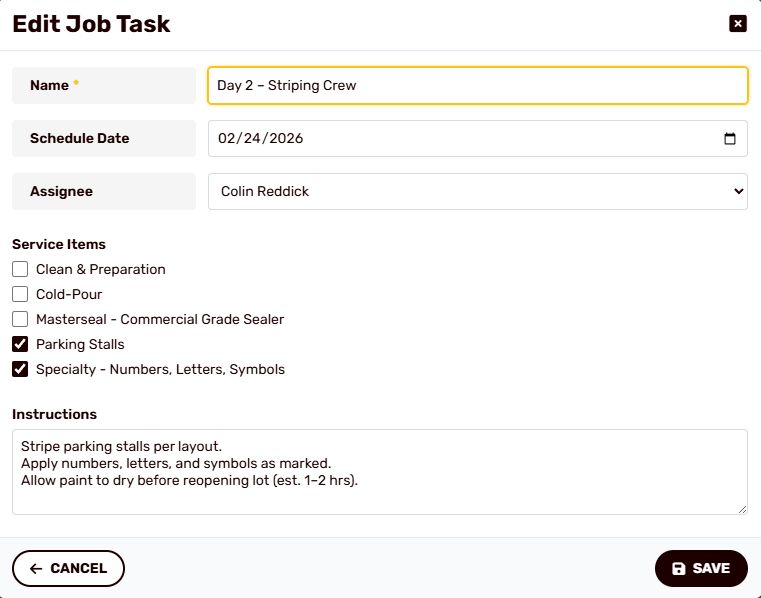
Assign Tasks to Different Crews
Tasks can be assigned to different crews or users within the same Job.
This is helpful when:
One crew handles prep and sealcoating
Another crew handles striping or finishing work
Each crew only sees the Tasks assigned to them on their schedule.
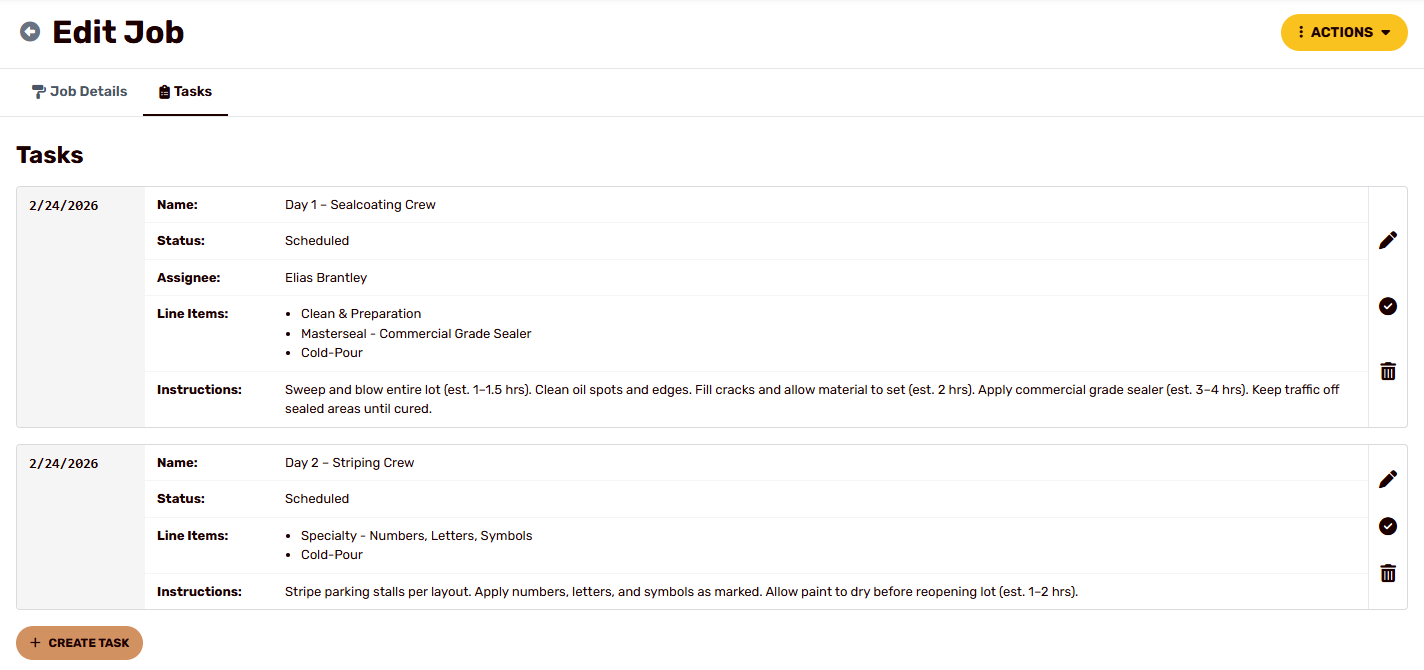
Example: Two-Day Job With Multiple Tasks
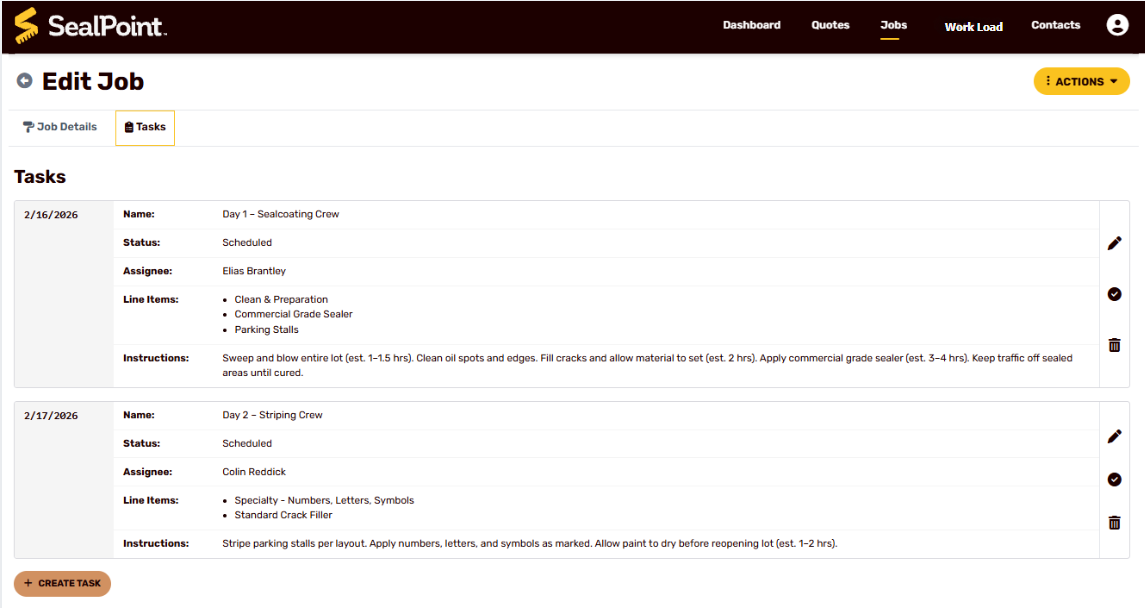
Below is an example of a Job broken into Tasks across two days.
Day 1 Tasks (Sealcoating Crew):
- Clean & Prep
- Crack Filling
- Sealcoating
Day 2 Tasks (Striping Crew):
- Line Striping – Parking Stalls
- Line Striping – Numbers / Letters
Complete a Task
Once work has been finished, Tasks can be marked complete from either the Jobs page or the Work Load.
This allows completed work to roll up into the overall Job and keeps schedules accurate.
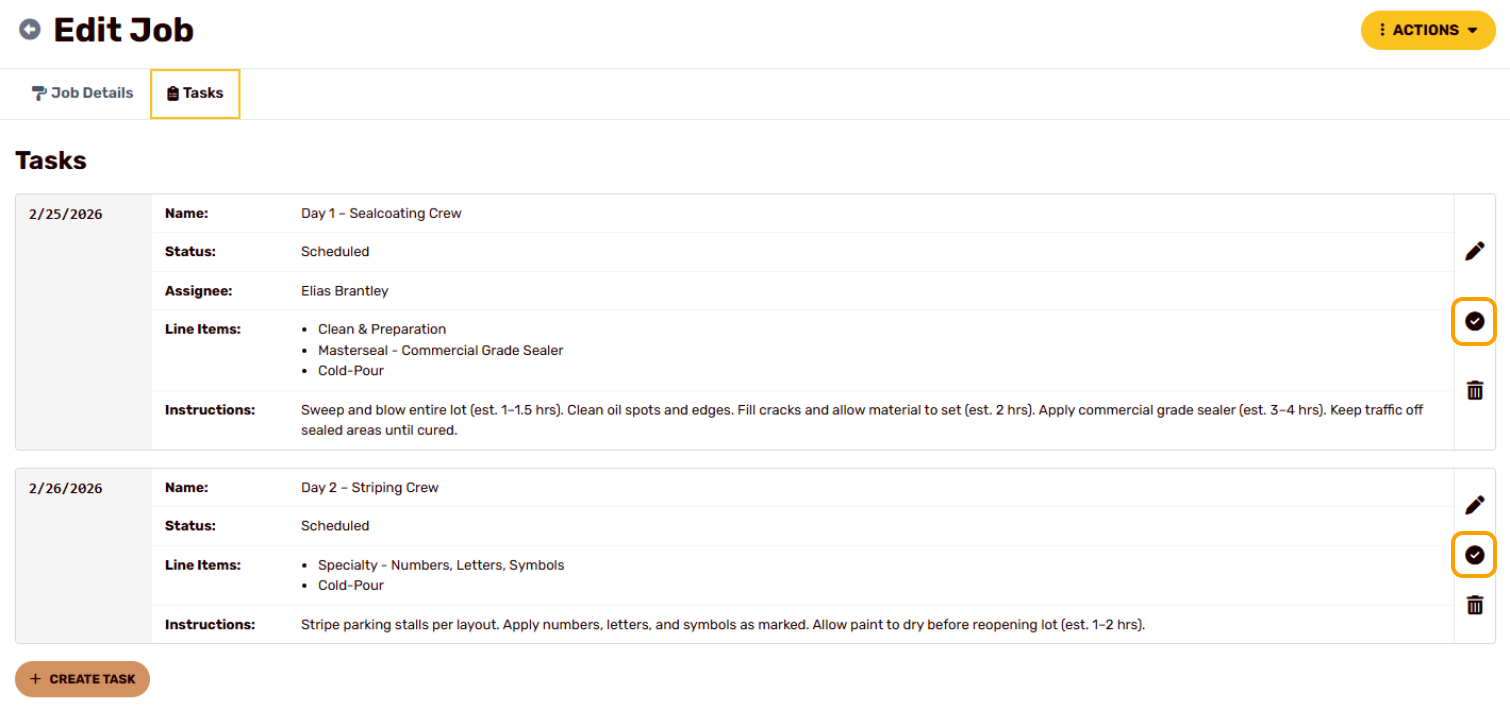
Complete a Task from the Jobs Page
Open the Job you are working on.
Click the Tasks tab.
Select the Task you want to complete.
Click the checkmark icon to mark the Task as complete.
Complete a Task from the Work Load
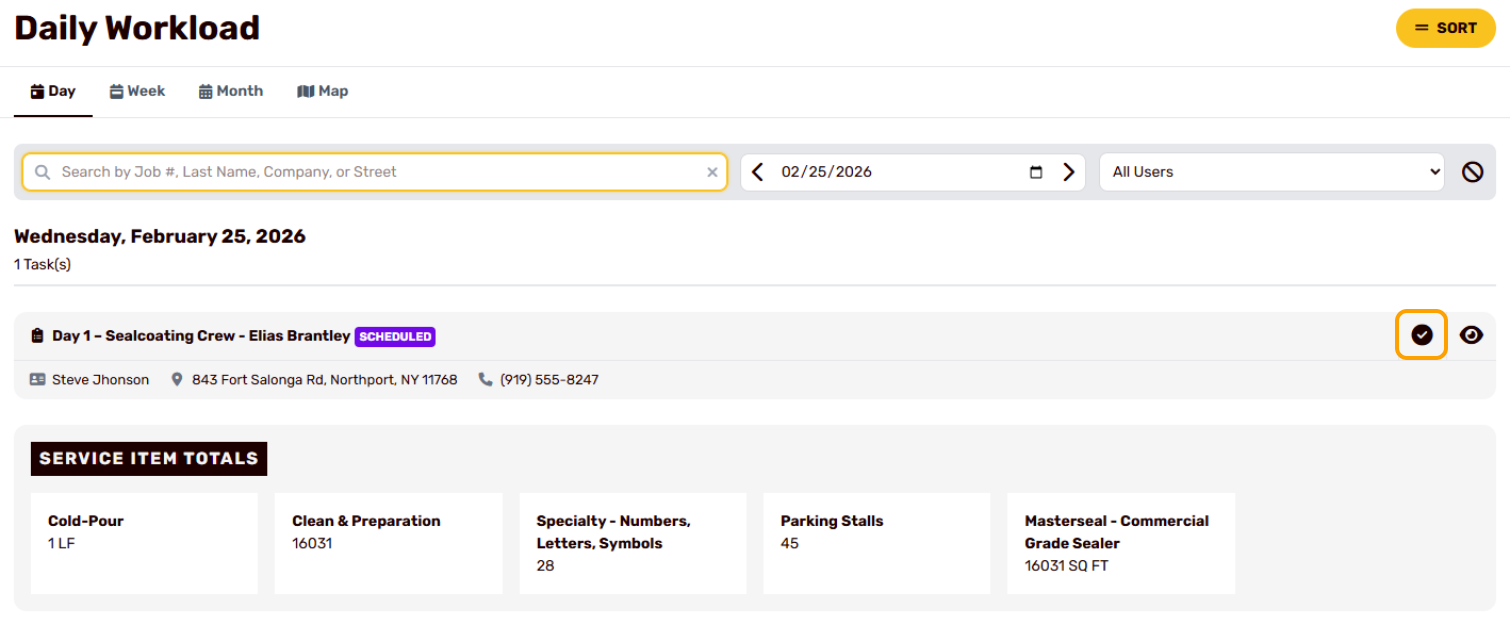
Tasks can also be completed directly from the Work Load.
Open the Work Load.
Filter by the scheduled date and assigned crew or user.
Locate the Task in the list.
Click the checkmark icon to mark the Task as complete.
What Happens When a Task Is Completed
When a Task is marked complete:
The Task status is updated
The completion is reflected in the Job
The Job progresses as Tasks are finished
This makes it easy to track work across multiple days and crews.
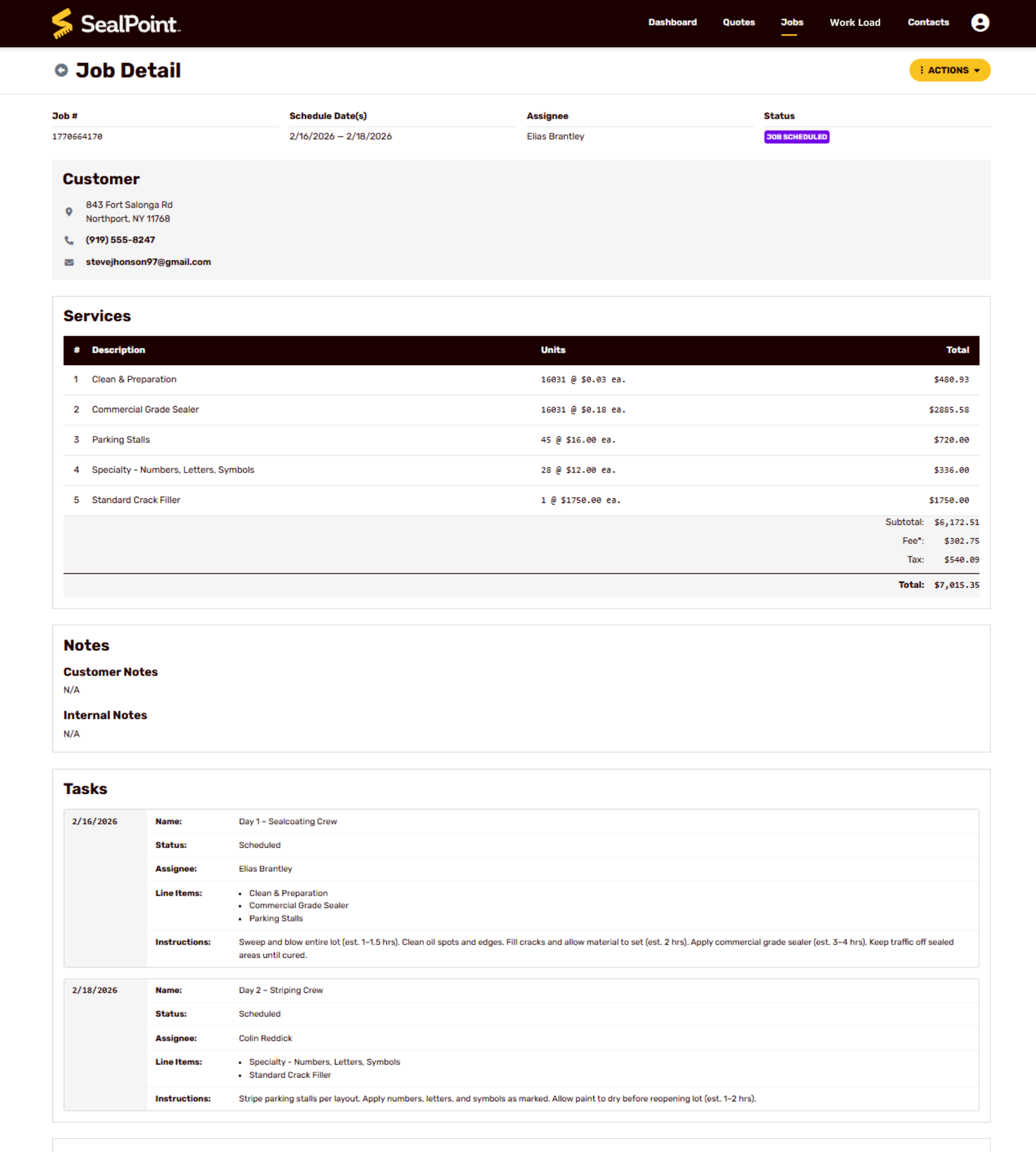
How Tasks Roll Up Into the Job
Even though Tasks are scheduled and assigned separately, they all belong to the same Job.
This means:
Task completion contributes to the overall Job status
Reporting and organization stay consolidated under one Job
The Job remains tied to one customer and location
Summary
Breaking a Job into multiple Tasks allows you to schedule work across multiple days, assign different crews, and organize the scope of work more clearly.
Even though Tasks are scheduled and completed separately, they all remain part of the same Job, keeping customer information, quotes, invoices, and job history organized in one place.
Using Tasks helps contractors manage multi-day jobs, coordinate crews, and keep schedules accurate without creating multiple Jobs for the same location.
Was this article helpful?
That’s Great!
Thank you for your feedback
Sorry! We couldn't be helpful
Thank you for your feedback
Feedback sent
We appreciate your effort and will try to fix the article