Quotes are the starting point for every job in SealPoint. From the Quotes page, you can quickly create a new quote, add or create a customer, measure the driveway using the built-in satellite tool, and add your service items with pricing. Once the quote is approved, you can schedule and complete the job with just a few clicks.
From the top toolbar, go to Quotes → New Quote (bottom right corner).
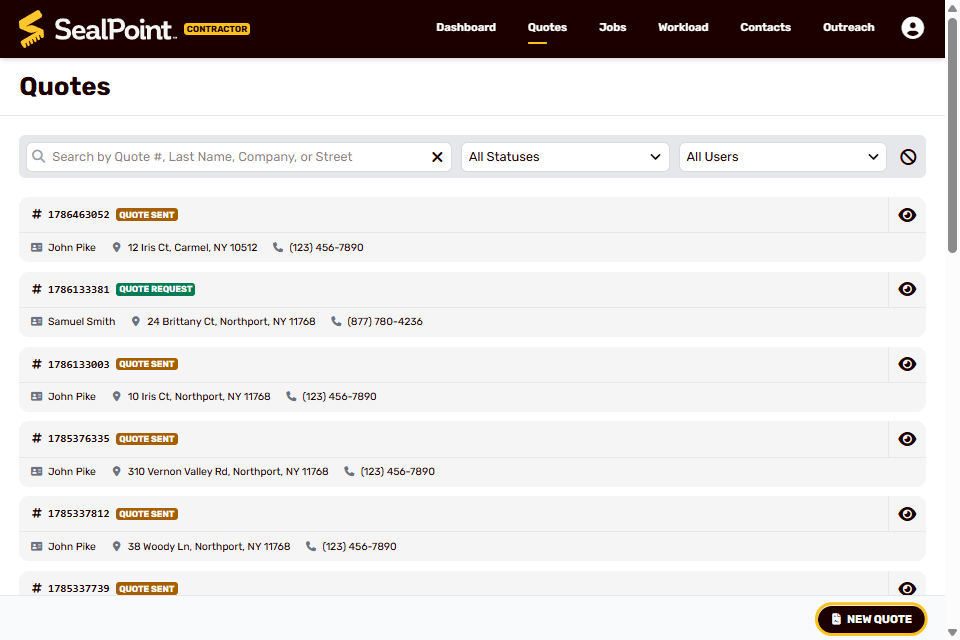
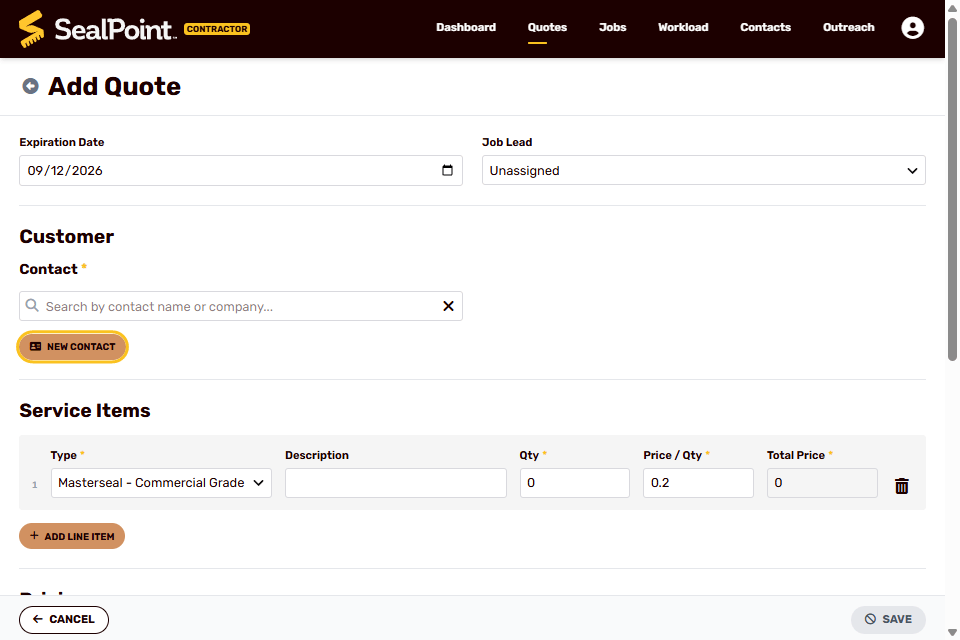
This will open the New Quote form. Here you can select an existing customer or choose add New Contact if this is their first time using your services.
Adding or Selecting a Customer
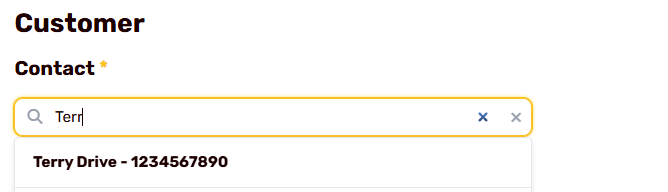
If the customer already exists in your Contacts list, begin typing their name to quickly locate and select them.
If the customer is new:
Select New Contact
Enter the customer’s contact details
Review the Notification Preferences section
Select Save
Notification Preferences determine which optional communications the customer receives. Transactional emails, such as quotes, job reminders, invoices, and receipts, are sent automatically and cannot be opted out of.
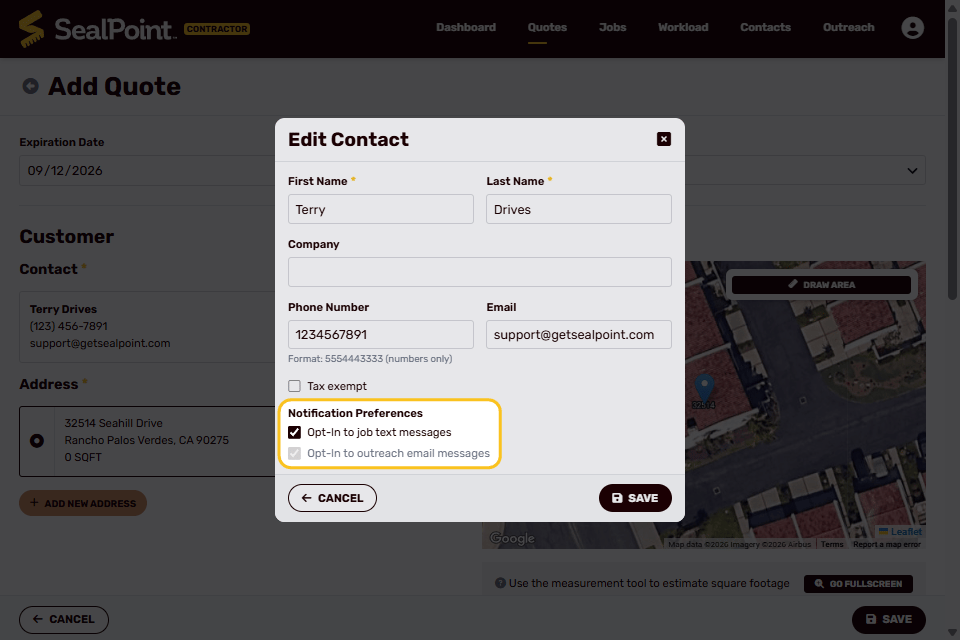
Customers can choose whether to Opt-In to job text messages and Opt-In to outreach email messages.
Note: If SMS job updates are enabled, the customer will first receive a confirmation text asking them to opt in to receive quote and job details by text message. Customers can opt out at any time by replying with STOP, END, or NO.
Adding the Service Address
Once the customer is selected or created:
Choose an existing address or
Select Add New Address to enter a new service address
Measuring the Area
After the service address is selected, a satellite image of the property automatically loads.
To measure the driveway:
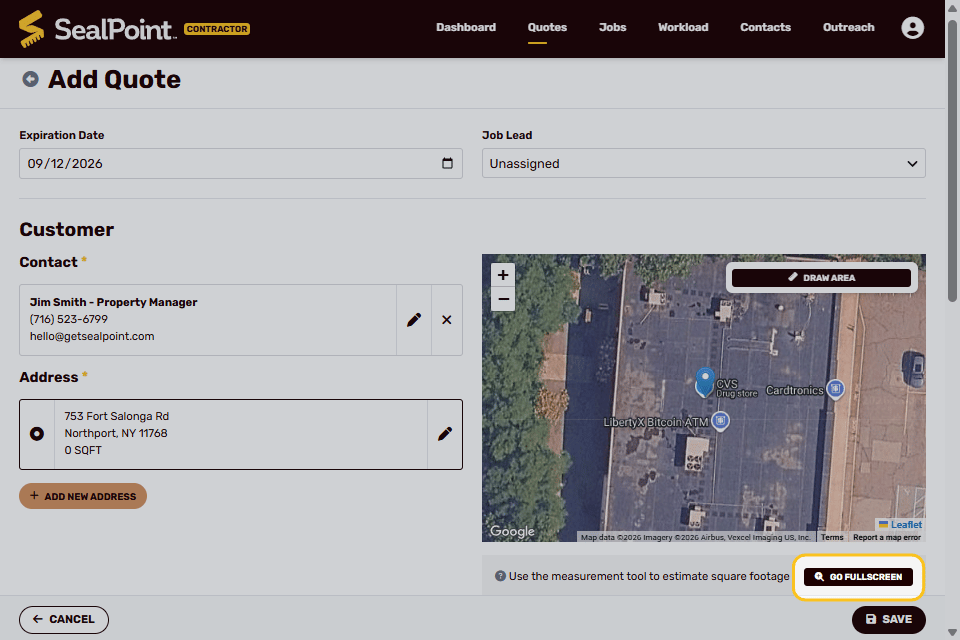
1. Select the Go Fullscreen option to enlarge the measuring tool.
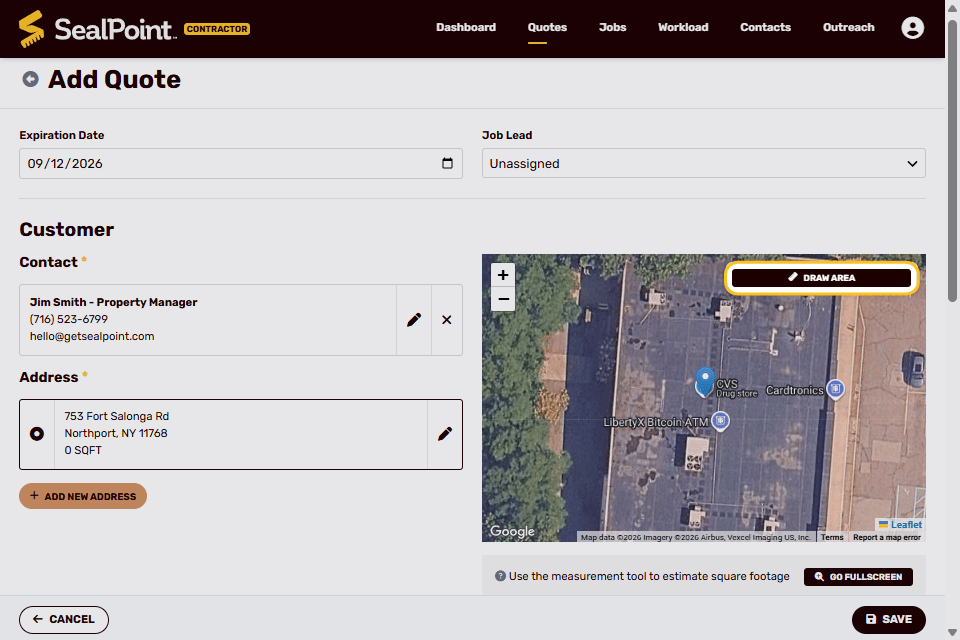
2. Select the Draw Area option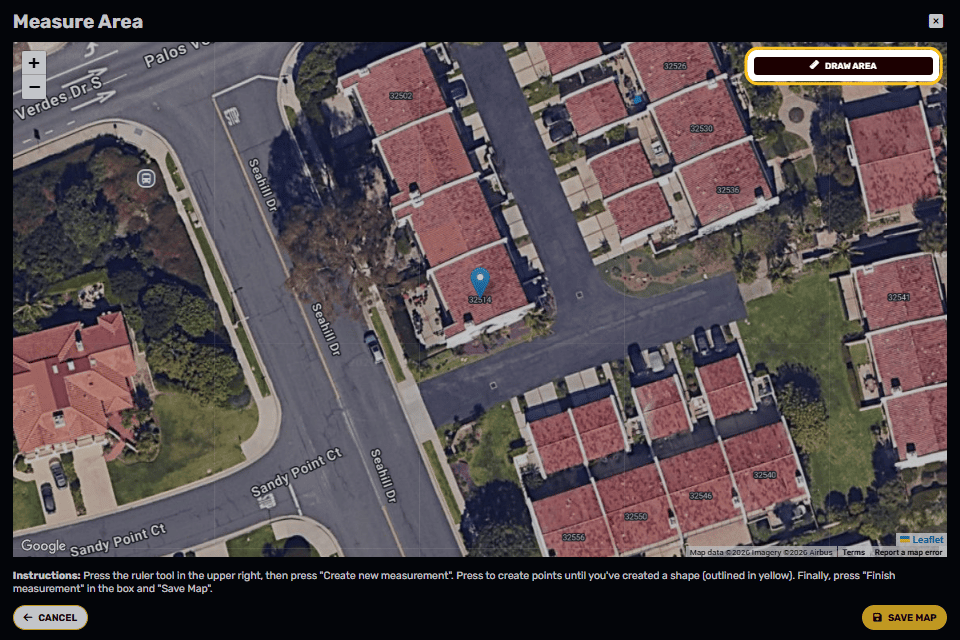
3. Tap on the map to plot points around the perimeter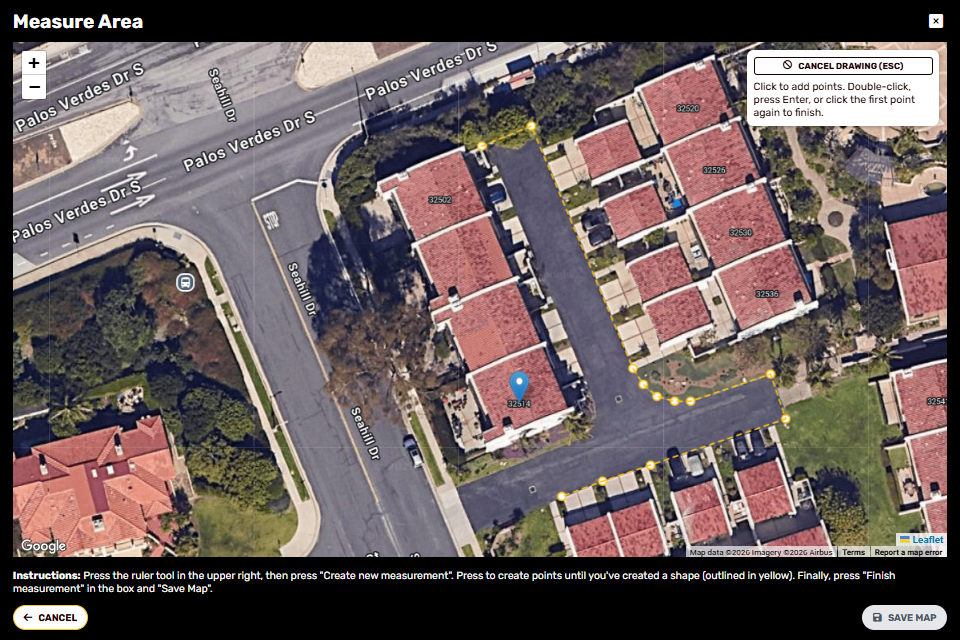
If the job includes multiple areas at the same address, you can select the Draw Area option again and repeat the outlining process to measure each additional area before saving the map. Each outlined area will be calculated separately, and the measurements will be combined into the total square footage. 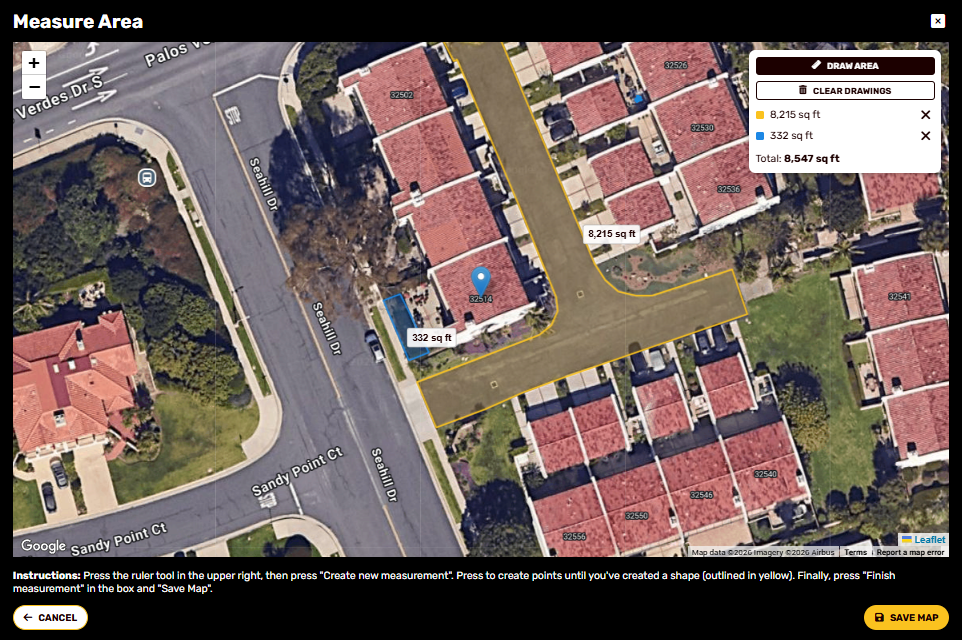
4. When the outline is complete, select Save Map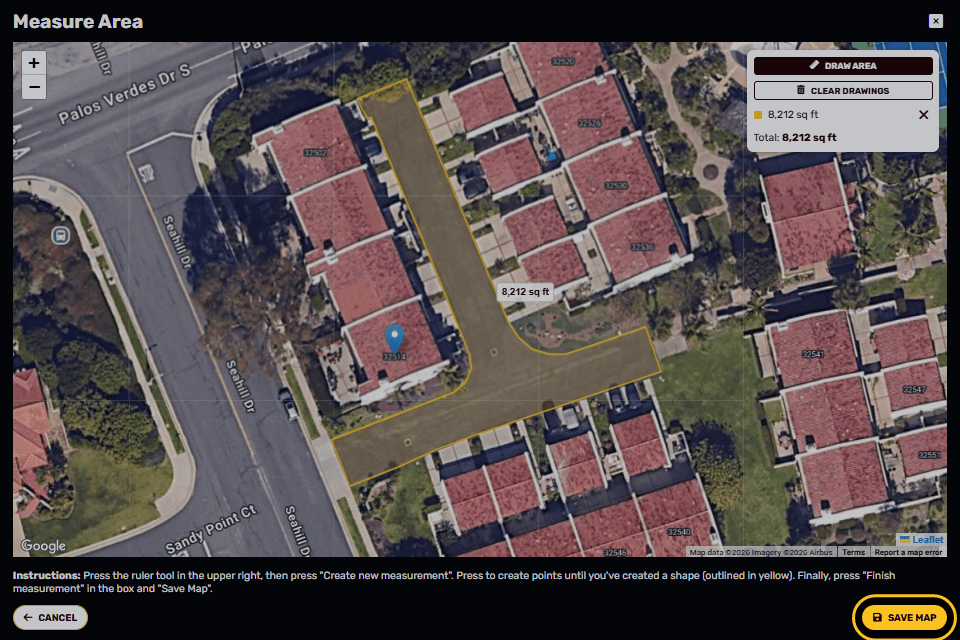
SealPoint will calculate the total square footage based on the measurement(s). Be sure to select Save Map (bottom right corner) before closing out the measuring tool.
Adding Service Items
1. Use the estimated square footage as the Qty for your sealing service items. For example, if the driveway is measured at 8,212 sq. ft., enter 8,212 into the Qty field for the sealing service item.
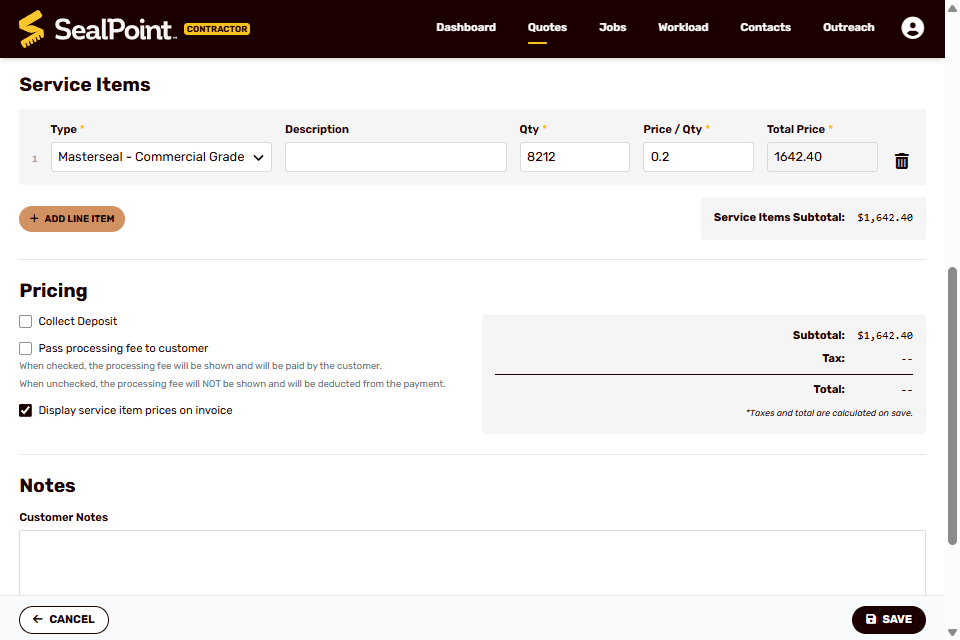
Note: When building a quote, you can choose whether the customer pays the payment processing fee or your organization absorbs the fee. This setting affects how the fee is displayed and calculated on the customer’s quote and invoice.
For more information on configuring this option, see Managing Pricing & Fee Settings help article.
2. Add any additional service items as needed. If you need to update or customize the services that appear in this list, refer to the Managing Service Items reference for instructions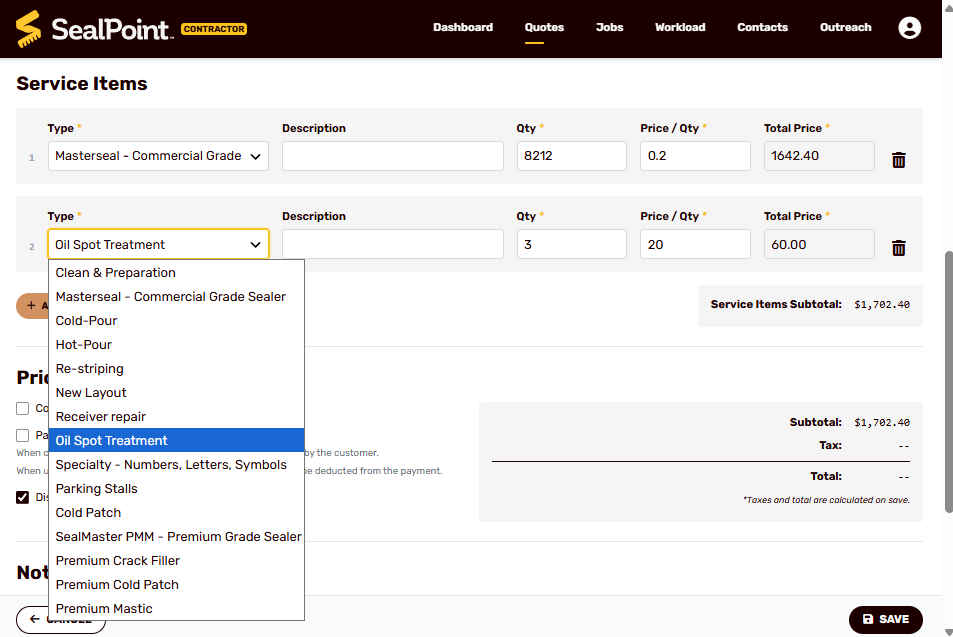
3. You can also include customer-facing notes or internal notes for your crew for the quote.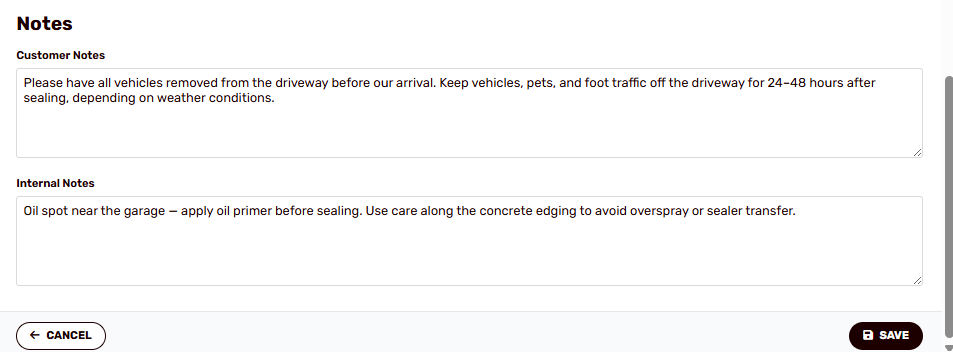
4. Select Save (bottom right corner) once you’ve added all the service items and notes.
Sending the Quote
When you’re ready to send the quote:
After selecting Save, tap Send Quote (bottom right corner).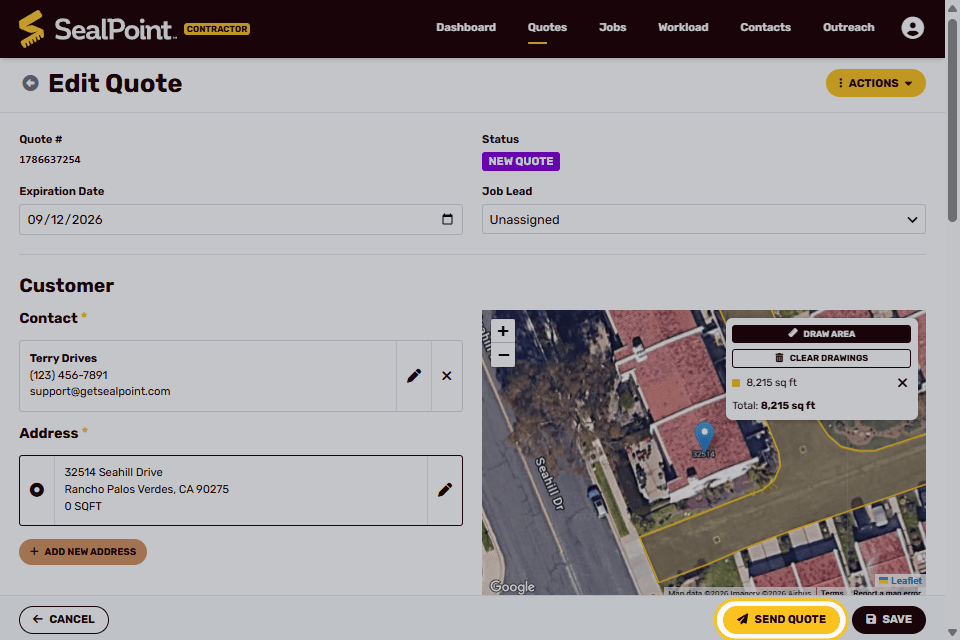
A preview will appear for review. If everything looks correct, select Send Quote to deliver it to the customer.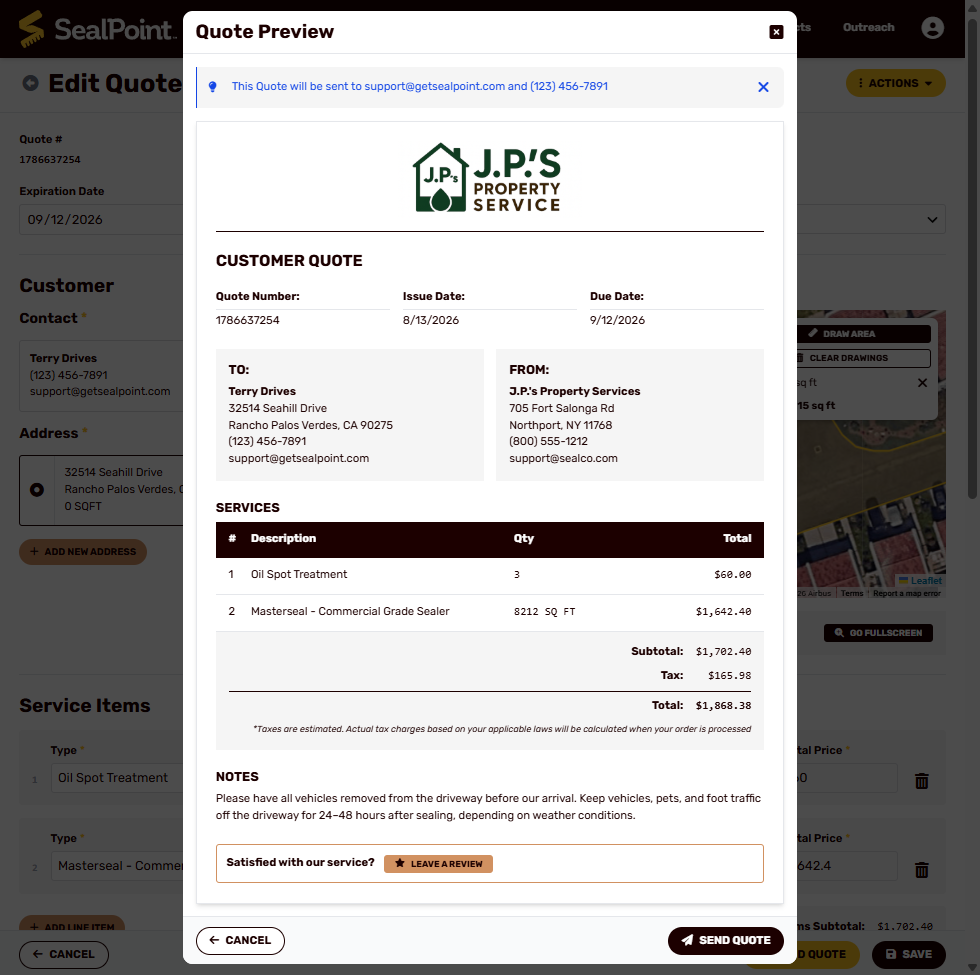
The customer receives a link by email, text message, or both depending on the notification preferences on the contact's profile.
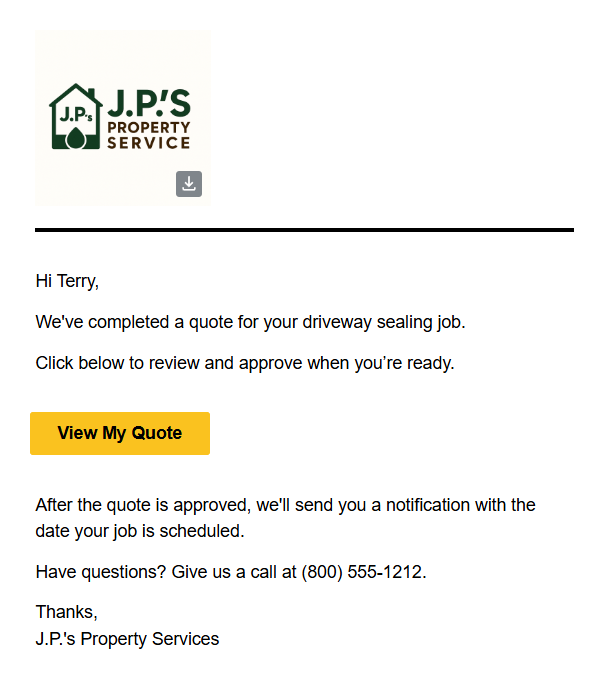
They can open the quote and choose Approve or Decline without the need to log in or create an account.
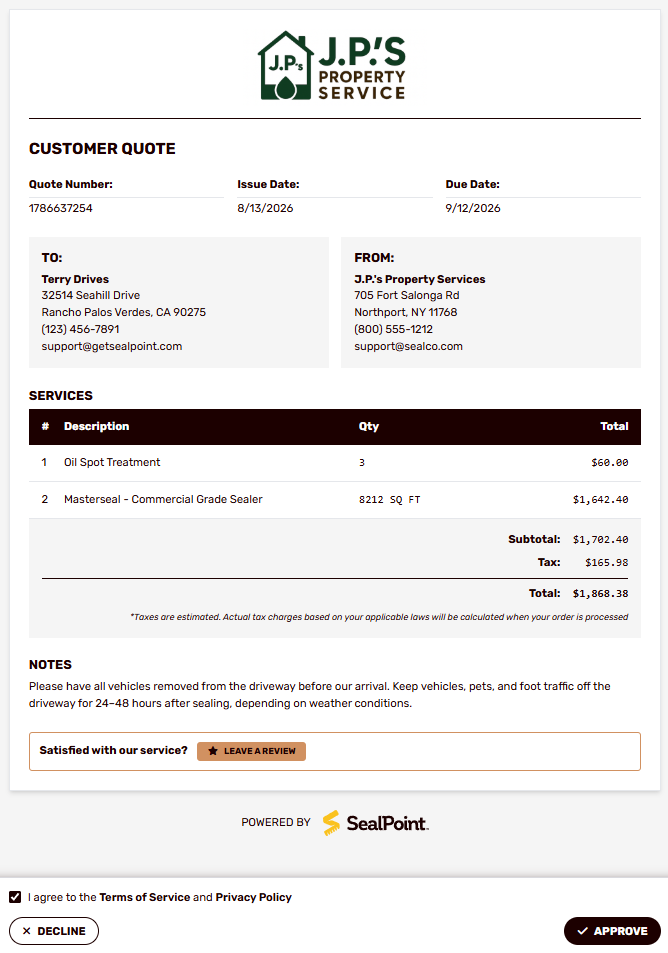
Once approved, the customer receives a confirmation message and the quote becomes available to be scheduled as a job.
Summary
Creating and sending quotes in SealPoint is a fast, streamlined process that allows you to move from customer details to measurement to pricing in just a few steps. By starting from the New Quote form, you can add or select a customer, enter the service address, measure the driveway using the built-in satellite tool, and add your customized service items with accurate price-per-unit calculations. Once your quote is saved, you can review a full preview and send it to the customer by email, text message, or both.
With easy customer approval, SealPoint simplifies the quoting process from start to finish. Once approved, quotes become ready to schedule, keeping your workflow efficient and your jobs moving forward.
Was this article helpful?
That’s Great!
Thank you for your feedback
Sorry! We couldn't be helpful
Thank you for your feedback
Feedback sent
We appreciate your effort and will try to fix the article