SealPoint gives you control over how pricing and processing fees appear on customer-facing quotes and invoices.
From your organization settings, you can choose whether credit card processing fees are passed to the customer or absorbed by your business. You can also choose whether customers see detailed service item pricing or a simpler breakdown of the work being performed.
These settings are managed at the organization level, but can also be adjusted on individual quotes or jobs.
Where to Find These Settings
To update your default pricing and fee settings:
- Go to My Organization
- Select the Settings tab
- Scroll to the Invoicing section
- Update the checkboxes for your preferred invoice settings
- Select Save Invoicing Settings
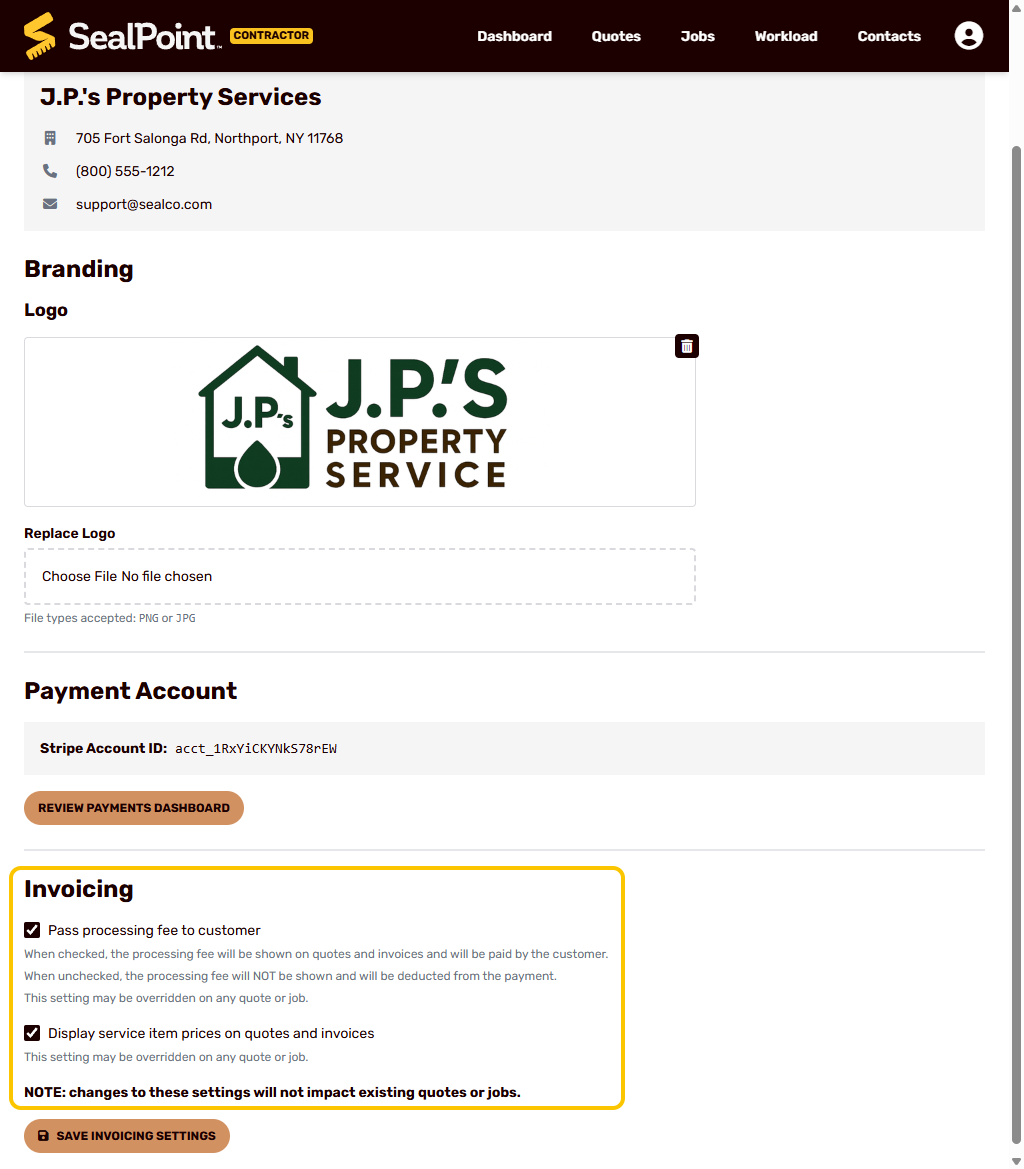
The two invoicing settings are:
- Pass processing fee to customer
- Display service item prices on quotes and invoices
Both settings are turned on by default. This matches the original SealPoint behavior before these pricing controls were added.
Note: Changes to these settings will not impact existing quotes or jobs. To change the behavior on an existing quote or job, open that specific quote or job, update the invoicing settings there, and resend the quote or invoice to the customer.
Pass Processing Fee to Customer
The Pass processing fee to customer setting controls whether online credit card processing fees are paid by the customer or absorbed by your business.
Processing fees only apply when a customer pays online by credit card. Cash and check payments do not have an online credit card processing fee.
When Pass processing fee to customer is checked:
- The processing fee is passed to the customer
- Taxes and fees are combined into a single Taxes & Fees line on the customer-facing quote or invoice
- If the customer pays online by credit card, the checkout page will show the tax and fee amounts broken out separately before payment is submitted
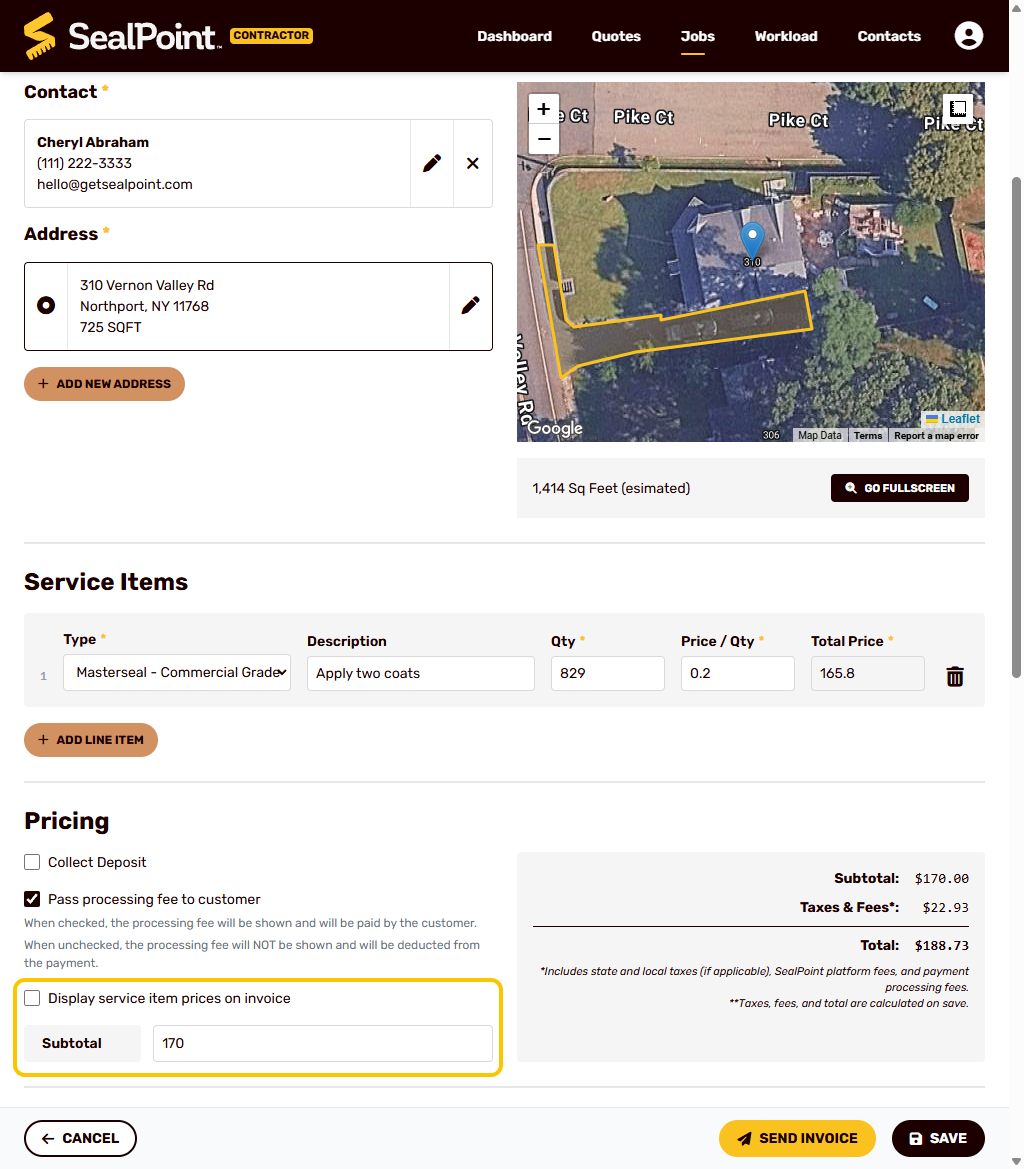
This option allows you to pass the credit card processing cost to the customer when they choose to pay online. The example shows a combined Taxes & Fees of $22.93 when the Pass processing fee to customer is checked.
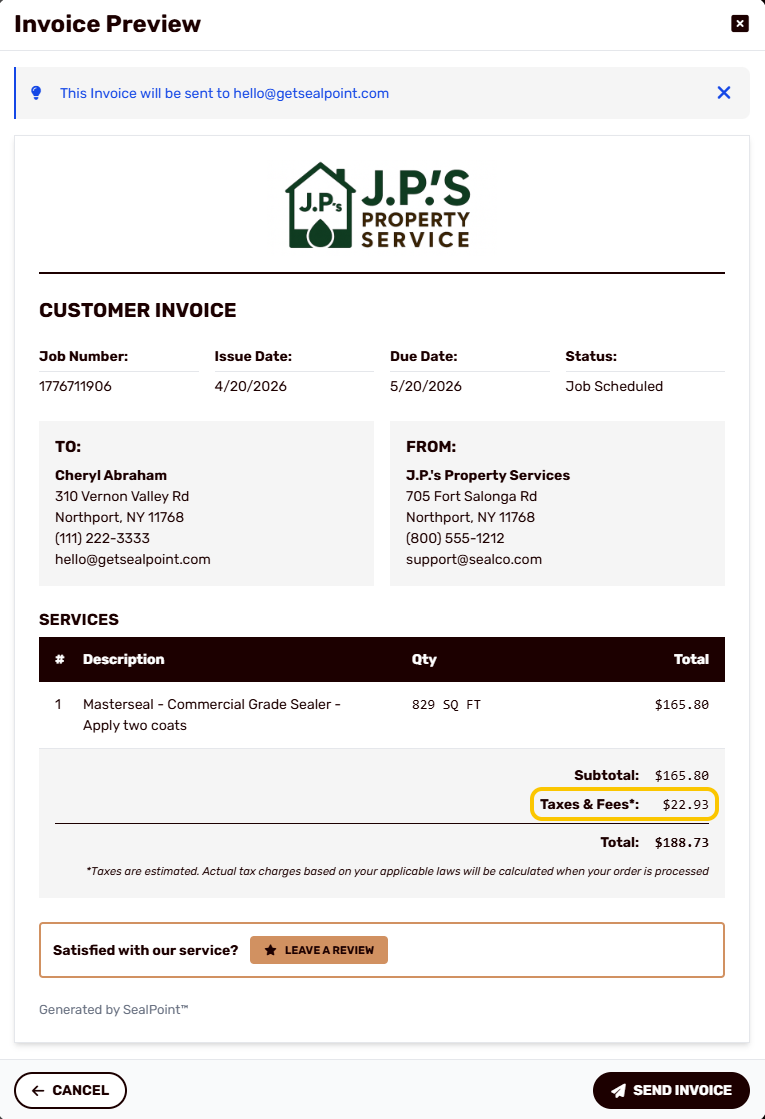
When Pass processing fee to customer is unchecked:
- The processing fee is absorbed by your business
- The customer does not see a separate processing fee on the quote or invoice
- Only applicable tax is shown to the customer
- If the customer pays online by credit card, the processing fee is deducted from your payout
This option allows you to present a cleaner customer-facing total and account for credit card processing costs in your overall pricing.
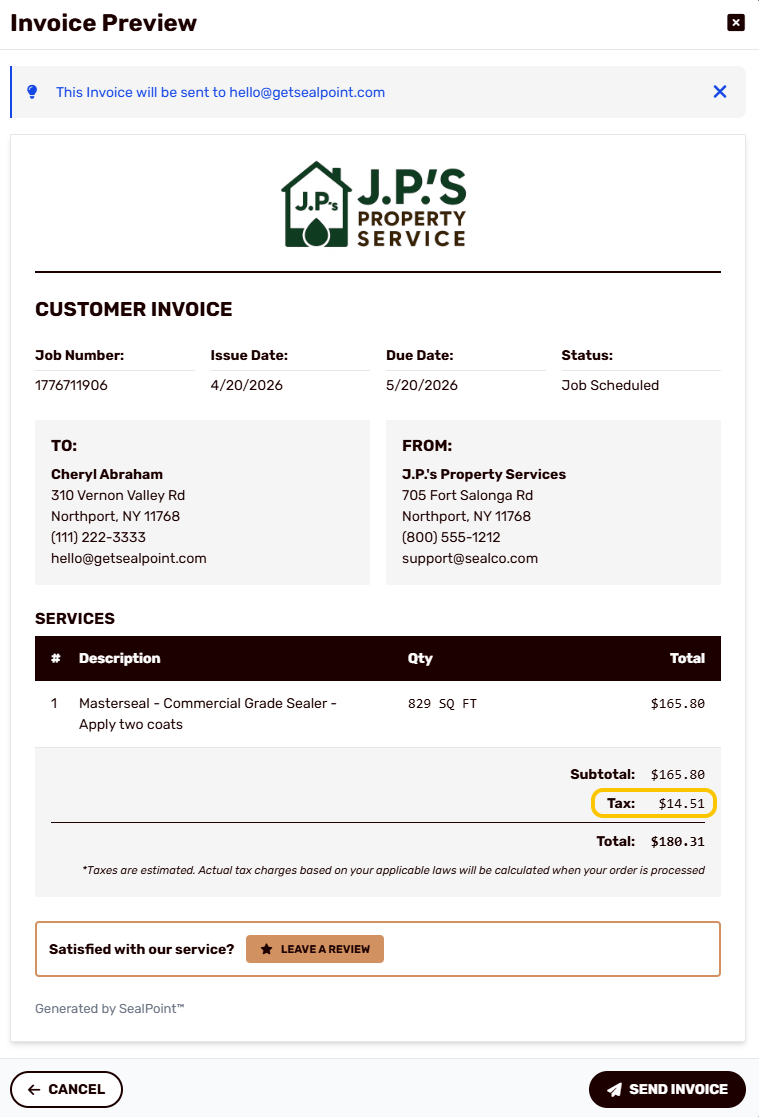
This setting can also be changed on an individual quote or job.
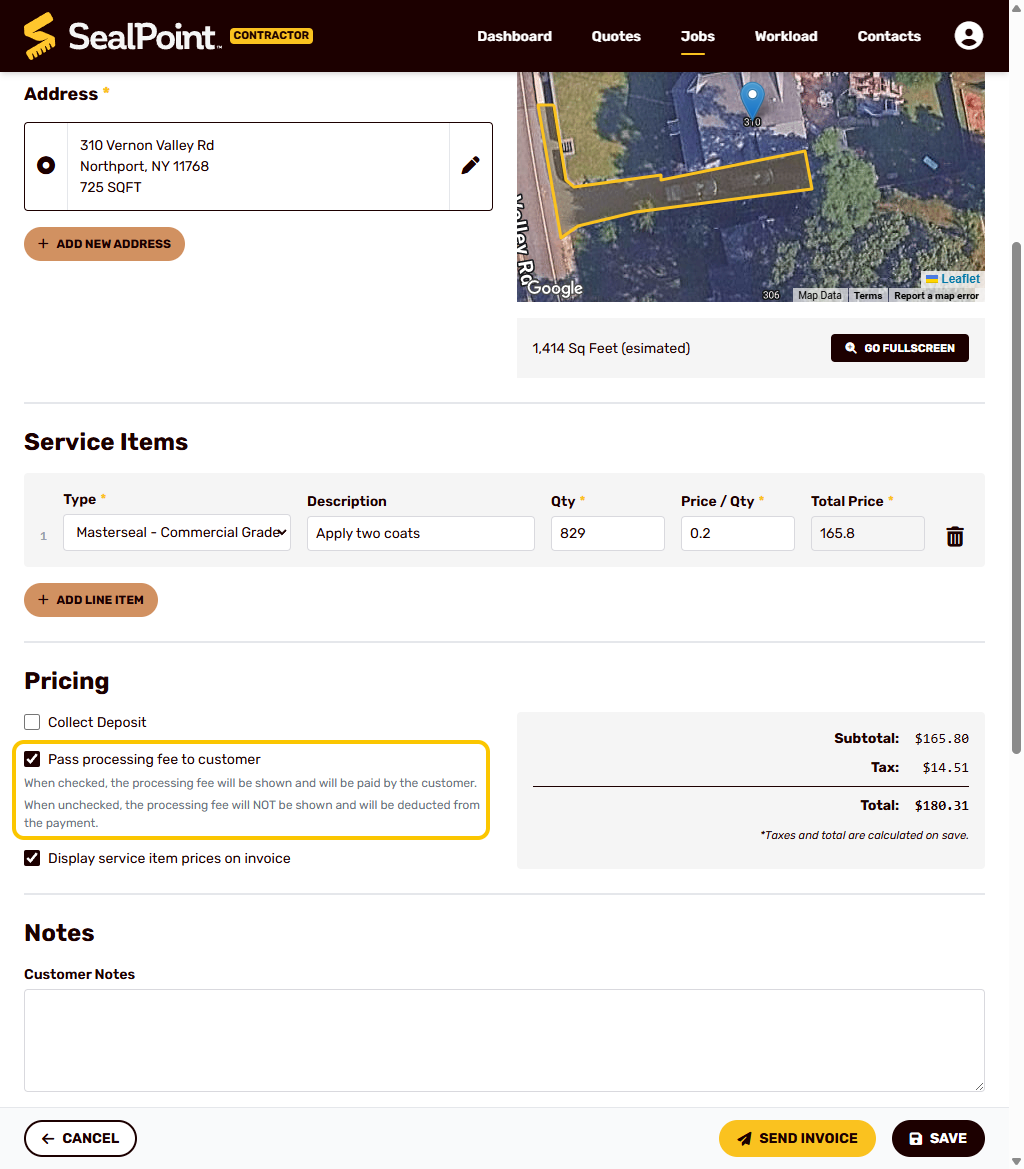
This is useful if you want your organization default to stay the same, but need a different fee setup for a specific customer or project. For example, you may usually pass processing fees to customers, but choose to absorb the fee on a larger job, a returning customer’s invoice, or a quote where you want to present one simple total.
Using a Custom Subtotal
A custom subtotal allows you to set the project subtotal shown to the customer instead of relying only on the calculated service item totals.
This is useful if you want to:
- Present one clean project price
- Round or adjust the project subtotal
- Not expose individual per unit costs. Example, price per square foot
- Account for costs already built into your quote
- Simplify the customer facing quote.
When a custom subtotal is used, SealPoint will show the service item name, quantity, and description, but will not show unit prices or line item totals. This avoids confusion between the individual service item calculations and the custom subtotal shown to the customer.
The quote or invoice will show:
- Service items
- Custom subtotal
- Applicable tax & fees
- Final total
In this example, the calculated line item total is $165.80. The Display service item prices on quotes and invoices setting has been unchecked, and a custom subtotal of $170.00 has been added.
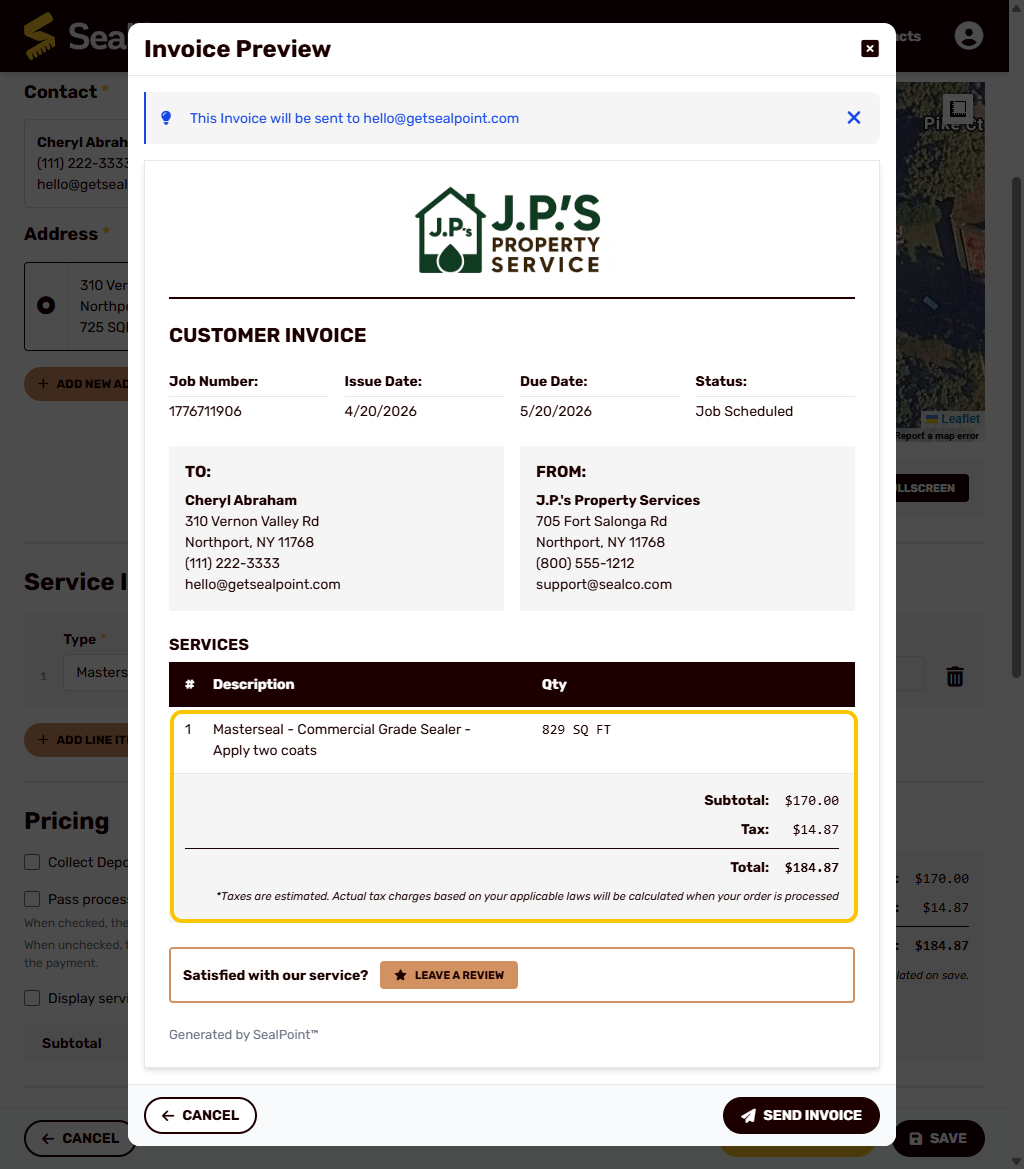
After selecting Send Invoice, SealPoint creates the customer-facing invoice using the custom subtotal. The customer will see the service item name, quantity, description, custom subtotal, applicable tax, and final total.
The unit price and individual line item total are not shown, which keeps the invoice focused on the final project price instead of the detailed service item calculation.
Using Fee Absorption with a Custom Subtotal
You can leave the Pass processing fee to customer and Display service item prices on quotes and invoices unchecked together when you want to present one simple project price to the customer.
For example, you may choose to:
Uncheck Pass processing fee to customer
Add a custom subtotal that accounts for your expected card processing cost
Send the quote or invoice with one clean customer-facing project total
When this setup is used, the customer does not see a separate processing fee on the quote, invoice, or online payment total. Instead, the customer sees the custom subtotal plus the applicable tax as the final total.
If the customer pays online by credit card, the processing fee is deducted from your payout. Since you set the custom subtotal yourself, you can account for that cost in the overall project price.
This option is useful if you prefer to avoid showing a separate processing fee while still pricing the job in a way that works for your business.
Example: Two Ways to Present a Similar Customer Total
The screenshots below show two different ways to handle pricing and processing fees.
In the first example, both settings are checked:
- Pass processing fee to customer
- Display service item prices on quotes and invoices
With this setup, the customer sees the service item pricing details, and the processing fee is passed to the customer when they pay online by credit card.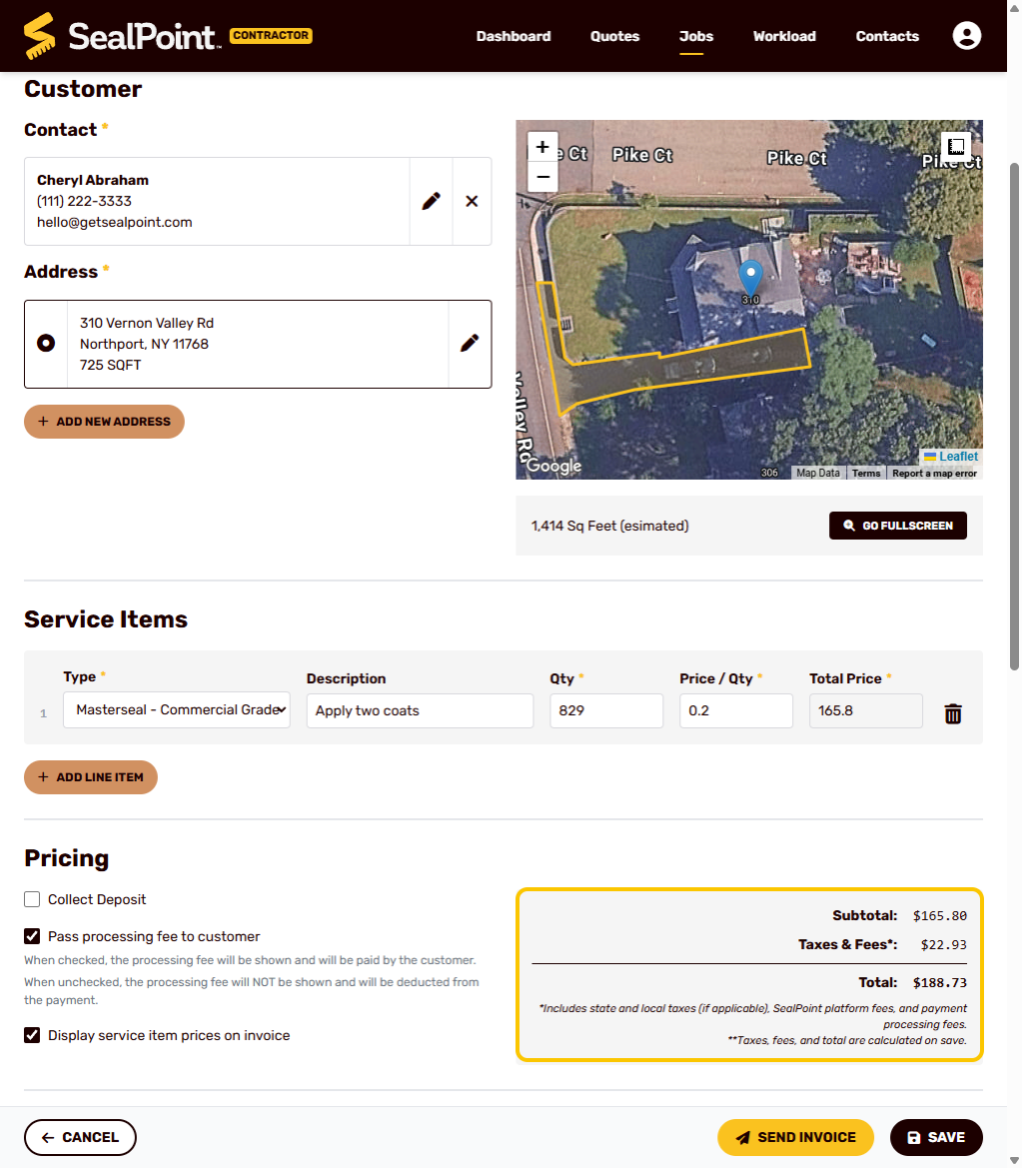
In the second example, both settings are unchecked, and a custom subtotal has been entered.
With this setup, the processing fee is not shown as a separate customer-facing charge, and the service item pricing details are simplified. The custom subtotal has been adjusted to account for the expected credit card processing cost in the overall project price.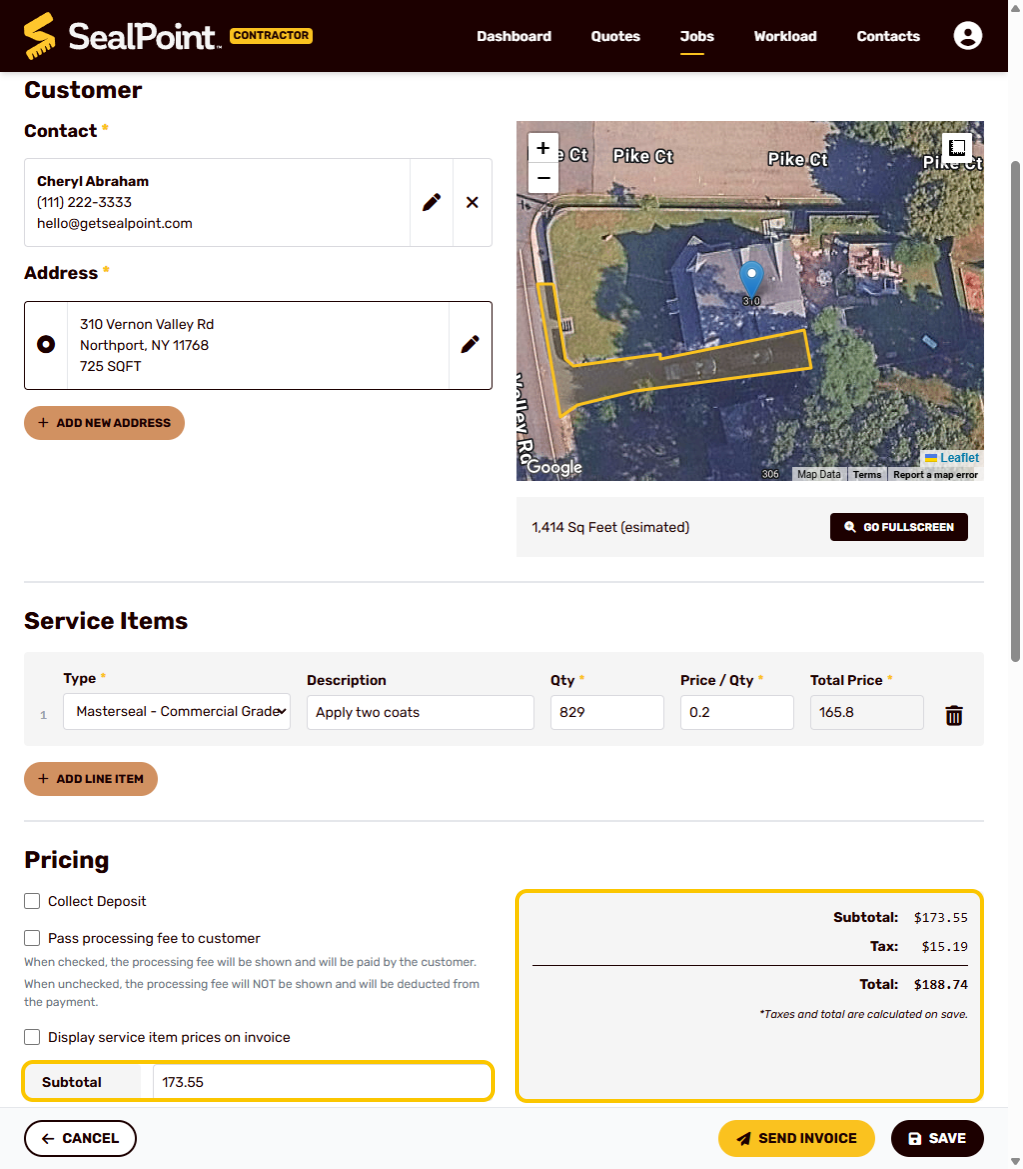
After the quote or invoice is sent, the customer-facing version will show the service items, custom subtotal, applicable tax, and final total. The customer will not see a separate processing fee, unit price, or individual line item total.
This allows you to present a cleaner quote or invoice while still pricing the job in a way that accounts for the cost of accepting online credit card payments.
Updating Settings on a Quote or Job
Your organization settings control the default behavior for new quotes and jobs. You can also adjust these settings on a specific quote or job.
This gives you flexibility if you want one job to use different pricing settings than your organization default.
For example, you may want to:
- Pass processing fees to the customer on most jobs, but absorb them on a specific job
- Show detailed service item pricing on some quotes, but simplify the pricing on others
- Use a custom subtotal for a specific project
Changes made on a specific quote or job only apply to that quote or job.
Important Notes
- Processing fees only apply when a customer pays online by credit card.
- Taxes are always shown to the customer when applicable.
- If processing fees are passed to the customer, taxes and fees are combined into one Taxes & Fees line on the quote or invoice.
- If the customer pays online by credit card, the checkout page will show tax and fee amounts separately before payment is submitted.
- If processing fees are absorbed by your business, only tax is shown to the customer and the processing fee is deducted from your payout if the customer pays via credit card.
- Organization-level setting changes do not impact existing quotes or jobs.
- These settings can be adjusted on individual quotes or jobs.
Summary
Pricing and fee settings allow you to control how quotes and invoices appear to your customers. You can pass credit card processing fees to the customer, absorb them into your business pricing, show detailed service item pricing, or present a simpler project total.
By setting your organization defaults and adjusting individual quotes or jobs when needed, you can choose the pricing setup that works best for your business and your customers.
Was this article helpful?
That’s Great!
Thank you for your feedback
Sorry! We couldn't be helpful
Thank you for your feedback
Feedback sent
We appreciate your effort and will try to fix the article