You don’t need to manually add each customer to get started in SealPoint. If you already have customer information saved on your phone or in another system, you can import those contacts and begin creating quotes right away.
SealPoint supports importing contacts from:
- Your phone's exported .VCF file (or Contact Card on iOS)
- A spreadsheet or an existing CRM exported .CSV file
What You Can Import
When importing contacts, you can include the following information:
- First and last name
- Email address
- Phone number
- Service address
Including complete and accurate information ensures your contacts are ready to use for quotes, scheduling, and invoicing.
Before You Import
Before uploading your file, take a moment to confirm:
- You are using the correct file type (VCF or CSV)
- Your file includes the required fields (name, email, phone)
- Your data is formatted correctly
This will help avoid import errors and ensure your contacts are added successfully.
Importing Contacts
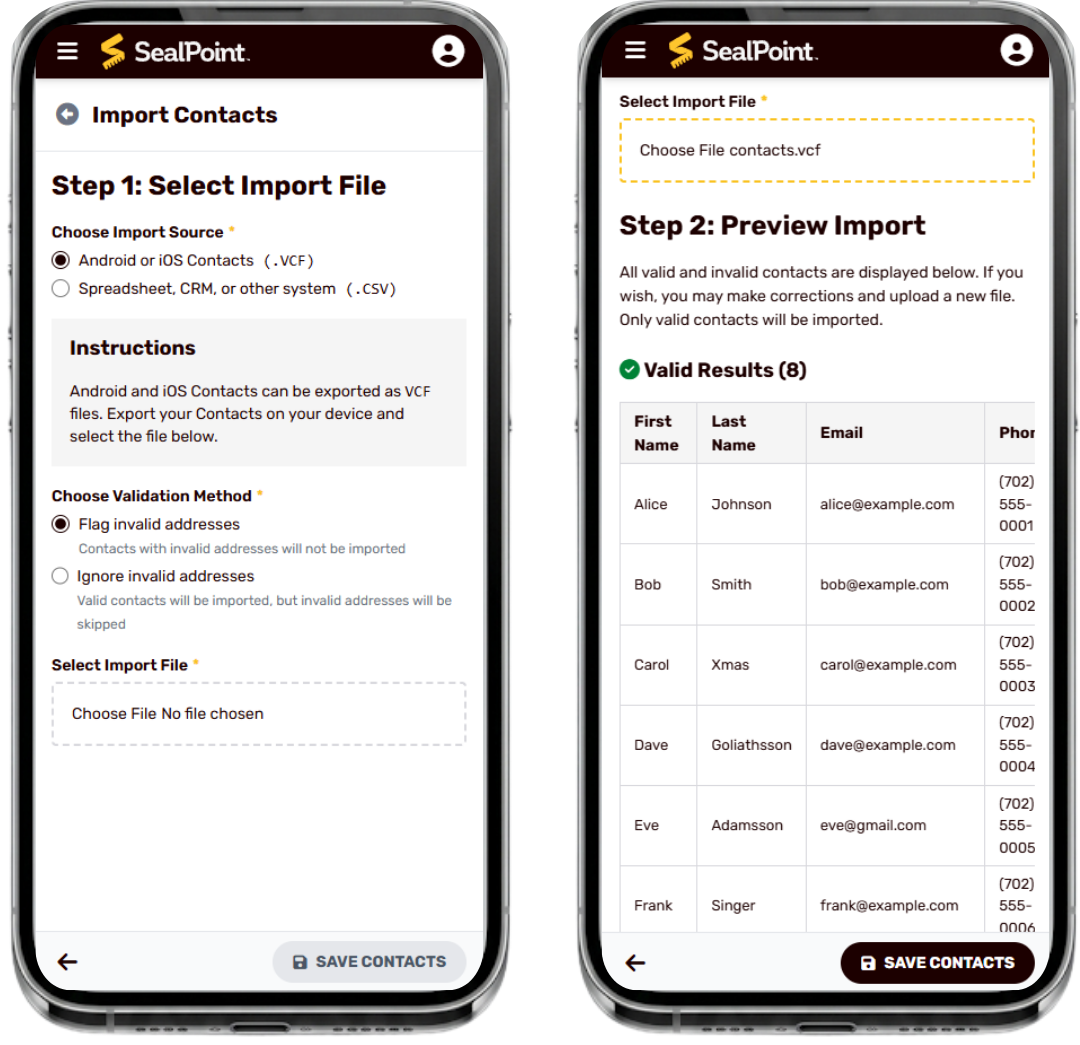
Import from Phone Contacts (.VCF)
Export your contacts as a .VCF file before importing.
Upload the .VCF File
- Go to Contacts in Sealpoint
- Click Import Contacts
- Select Android or iOS Contacts (.VCF)
- Click Choose File and select your .VCF file
Choose a Validation Method
- Flag invalid addresses – Contacts with invalid addresses will not be imported
- Ignore invalid addresses – Contacts will be imported, but invalid addresses will be skipped
Select Save Contacts to complete the import.
Your contacts will appear in your list once the upload is complete.
Import from Spreadsheet or CRM (.CSV)
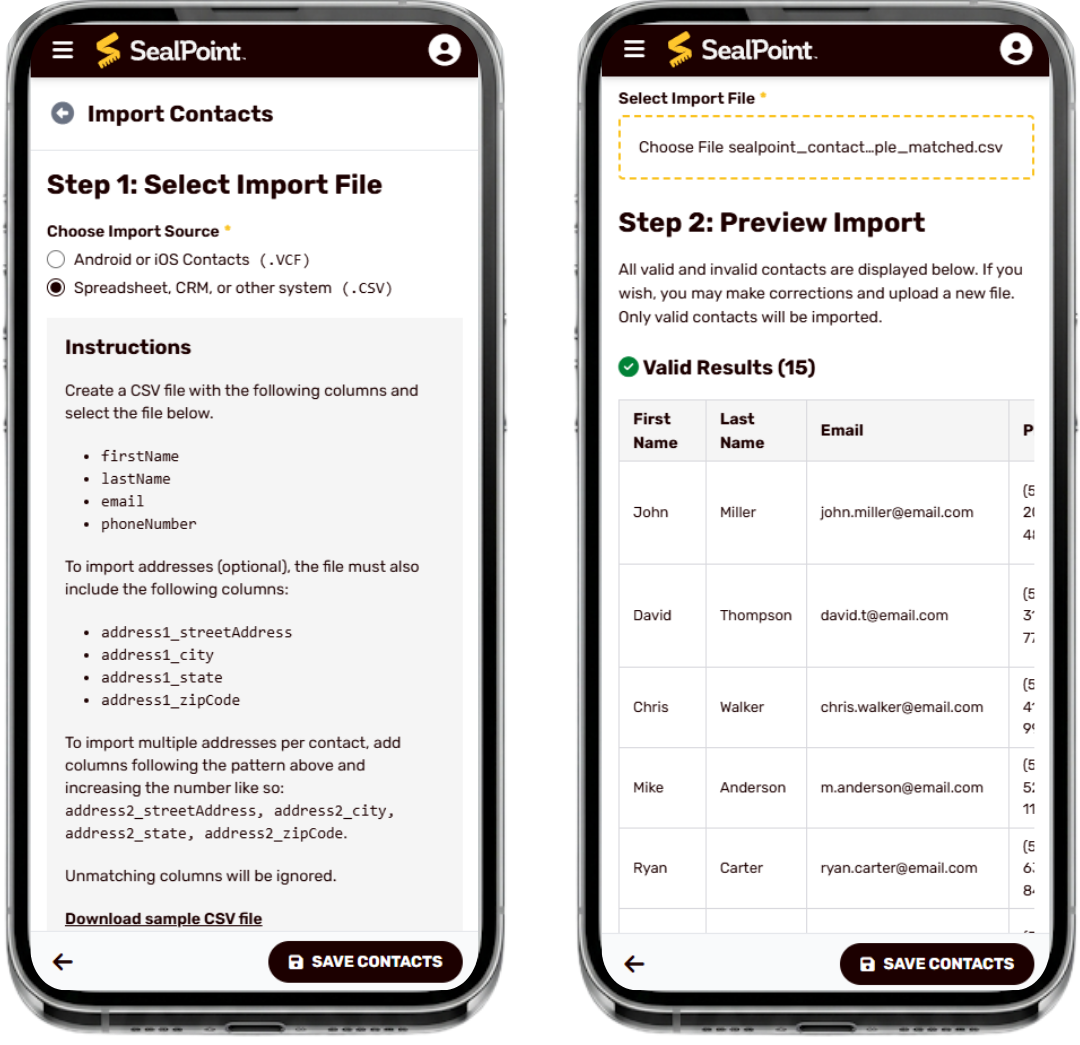
Use a CSV file when importing contacts from another system.
Prepare Your CSV File
Your file must include:
firstNamelastNameemailphoneNumber
Address Fields (Optional)
address1_streetAddressaddress1_cityaddress1_stateaddress1_zipCode
Additional Addresses (Optional)
address2_streetAddressaddress2_cityaddress2_stateaddress2_zipCode
Any columns that do not match these fields will be ignored.
Upload the CSV File into SealPoint
- Go to Contacts
- Click Import Contacts
- Select Spreadsheet, CRM, or other system (.CSV)
- Click Choose File and select your CSV file
Choose a Validation Method
- Flag invalid addresses – Contacts with invalid addresses will not be imported
- Ignore invalid addresses – Contacts will be imported, but invalid addresses will be skipped
Select Save Contacts to complete the import.
Your contacts will appear in your list once the upload is complete.
If There Are Errors
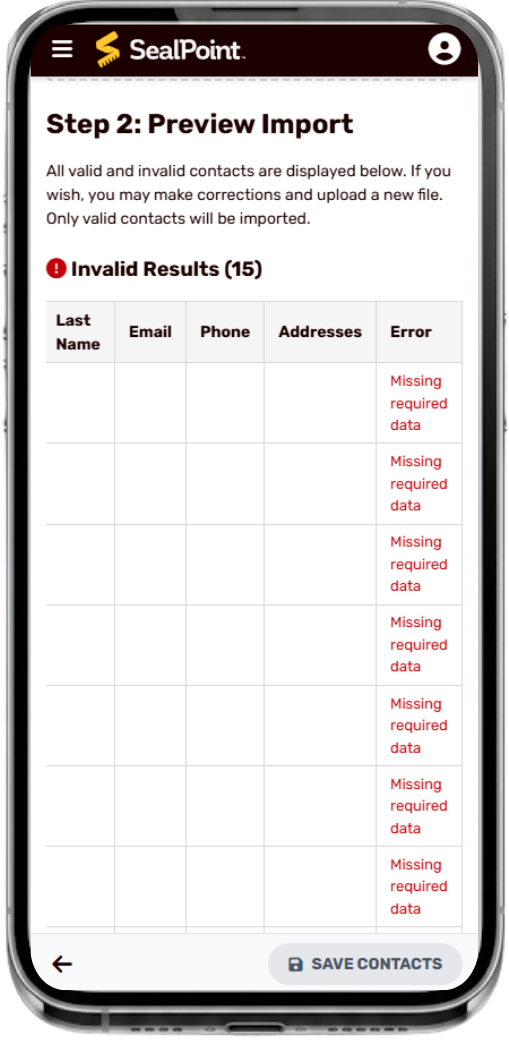
After uploading your file, invalid contacts may be flagged.
Only valid contacts will be imported.
Common Issues
- Missing required fields (name, email, or phone)
- Incorrect formatting
Fixing Errors
- Open your CSV file
- Add or correct the missing information
- Save the file
- Upload again
Tip: Use the sample CSV file as a template to ensure your formatting matches the required structure.
Exporting Contacts
iPhone (iOS)
- Open the Contacts app
- Tap Lists or the < (top left)
- Press and hold All Contacts (or a specific list)
- Tap Export
- Tap Save to Files
The file may appear as a Contact Card on iPhone. A Contact Card is also a .VCF file.
Android
- Open the Contacts app
- Tap the Gear icon (Settings) or menu
- Tap Import/Export contacts
- Tap Export contacts
- Select Export to .VCF file
- Save the file
Tips
- Remove duplicate contacts before importing
- Double-check formatting before uploading
- Start with a small test file if needed
After Importing
- The valid imported Contacts will save automatically in your SealPoint Contacts list
- The contacts will be Available when creating quotes
Need Help
If your import fails:
- Confirm your file format (VCF or CSV)
- Review and clean your file
- Try uploading again
If you continue to have issues, contact support@getsealpoint.com for assistance.
Importing contacts into SealPoint allows you to quickly bring in your existing customer list without manual entry. By using a properly formatted VCF or CSV file, you can add contacts in bulk and begin creating quotes immediately. Keeping your contact list organized and up to date helps streamline your workflow and ensures you’re ready to manage jobs from the start.
Was this article helpful?
That’s Great!
Thank you for your feedback
Sorry! We couldn't be helpful
Thank you for your feedback
Feedback sent
We appreciate your effort and will try to fix the article