SealPoint allows you to invite team members to your organization and control what they can see and do using permissions. Setting up users and permissions properly helps keep your business information organized while ensuring each team member only has access to what they need.
This article explains how to invite users, edit users, and understand permission types.
Why Permissions Matter
Permissions control what users can see and what actions they can perform in SealPoint. Not every user needs access to all parts of the system, and permissions help keep financial data, customers, quotes, and jobs organized and secure.
For example:
Users without Manage Contacts will not see the Customers list
Only Administrators can view financial data on the Dashboard
Crew members typically only see weather and their assigned jobs
Permission Types Explained
Below is a breakdown of each permission and what it allows users to access.
Administrator
Administrators have full access to the system.
This permission allows users to:
- View financial data on the Dashboard
- Access all customers, jobs, and quotes
- Manage users and permissions
- Edit all parts of the system
Important: Only Administrators can see financial information on the Dashboard.
Manage Contacts
Allows users to manage customer information.
With this permission, users can:
- View the Customers list
- Add new customers
- Edit customer details
Without this permission, the Customers section will not be visible. The only customer information these users will see is the customer information associated with their assigned jobs.
Manage Jobs
Allows users to manage job scheduling and execution.
With this permission, users can:
- Create jobs
- Edit job details
- Schedule jobs
- Update job status
Manage Quotes
Allows users to create and manage quotes.
With this permission, users can:
- Create quotes
- Edit quotes
- Send quotes to customers
- Manually Approve Quotes
Manage Users
Allows users to manage team members.
With this permission, users can:
- Invite new users
- Edit user permissions
- Remove users from the organization
This permission is typically reserved for owners or office managers.
View Assignments
This permission is designed for crew members working in the field and provides access to their assigned jobs. The View Assignments permission cannot be removed and is the minimum level of access a user can have in SealPoint.
With this permission, users can:
- View jobs assigned to them
- See job details related to their work
Without additional permissions, users cannot:
- See all jobs (only assigned jobs)
- Access customers, quotes, or organization settings
How to Invite / Add a User
From the top toolbar, go to your setting and select My Organization
Select Manage Users
Click Invite User
Enter the user’s Name and Email Address
Assign the appropriate permissions
Select Save
The user will receive an email to join your organization.
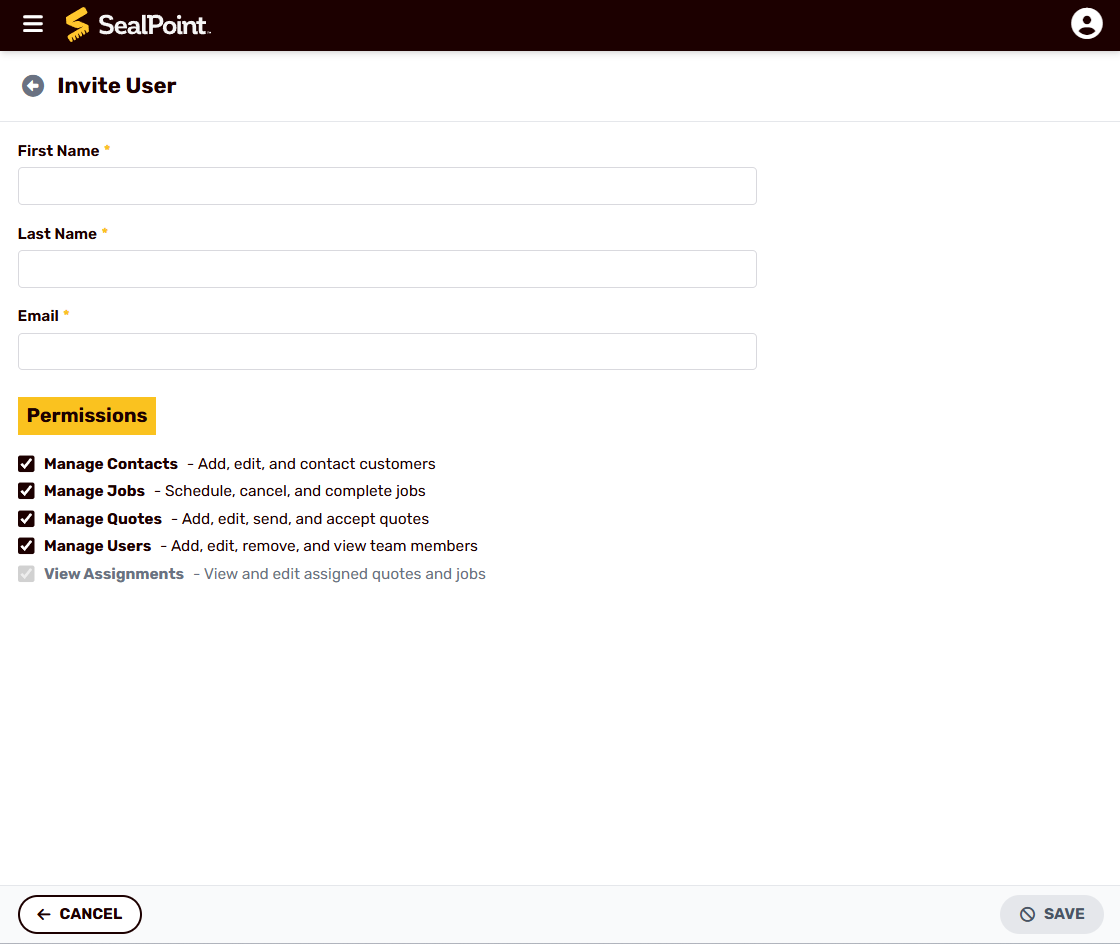
If a user has not accepted their invitation, you can resend the invite at any time. In the Pending Invitations list, select the resend icon to the right of the user’s name.
How to Edit an Existing User
You can update user information or permissions at any time.
To edit a user:
- Go to My Organization
- Select Manage Users
- Click on the user you want to edit
- Update their name, email, or permissions
- Select Save
This is useful if a team member’s role changes or they need additional access.
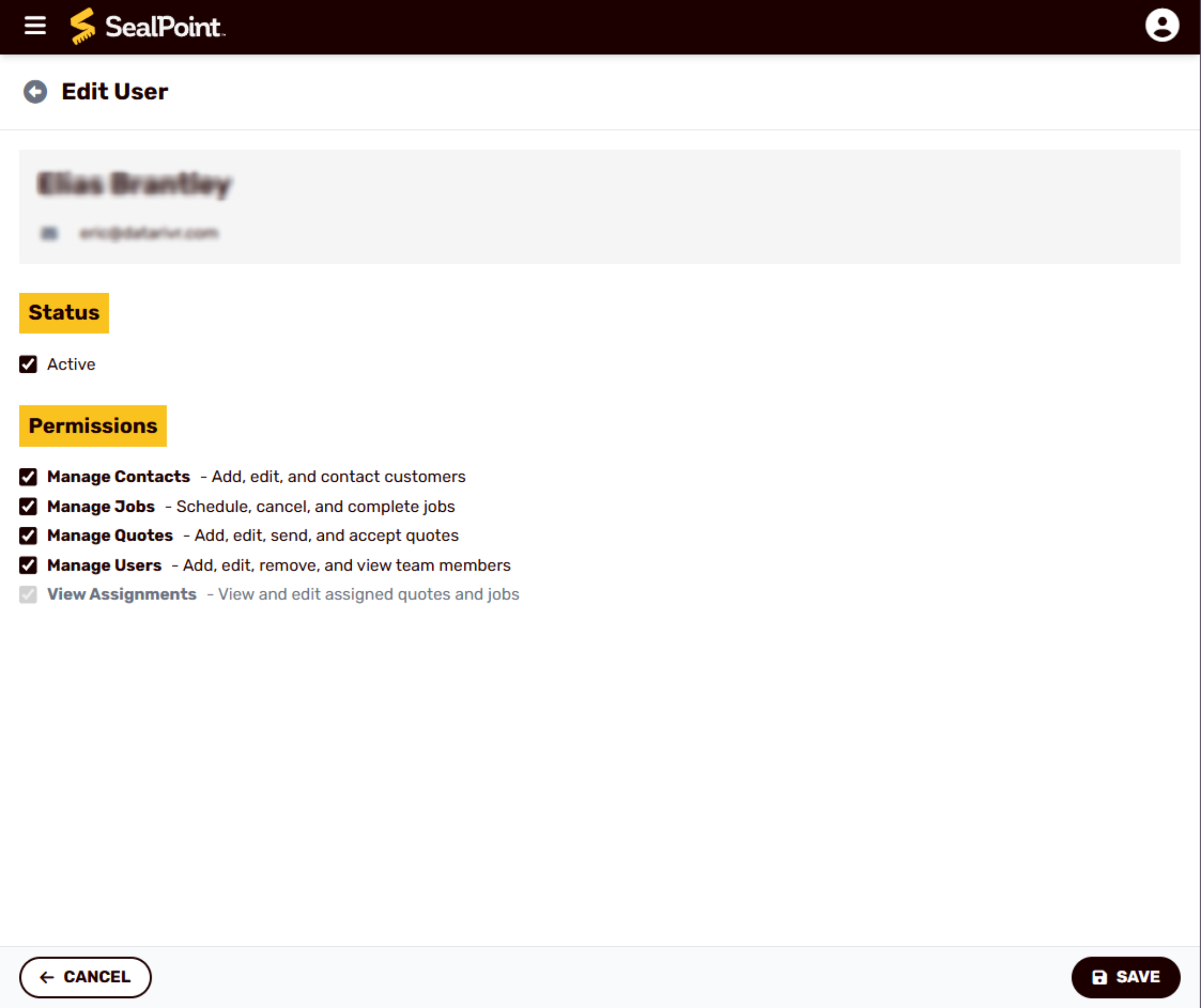 You can update a users permissions at any time if a user’s role changes.
Example: Dashboard Access
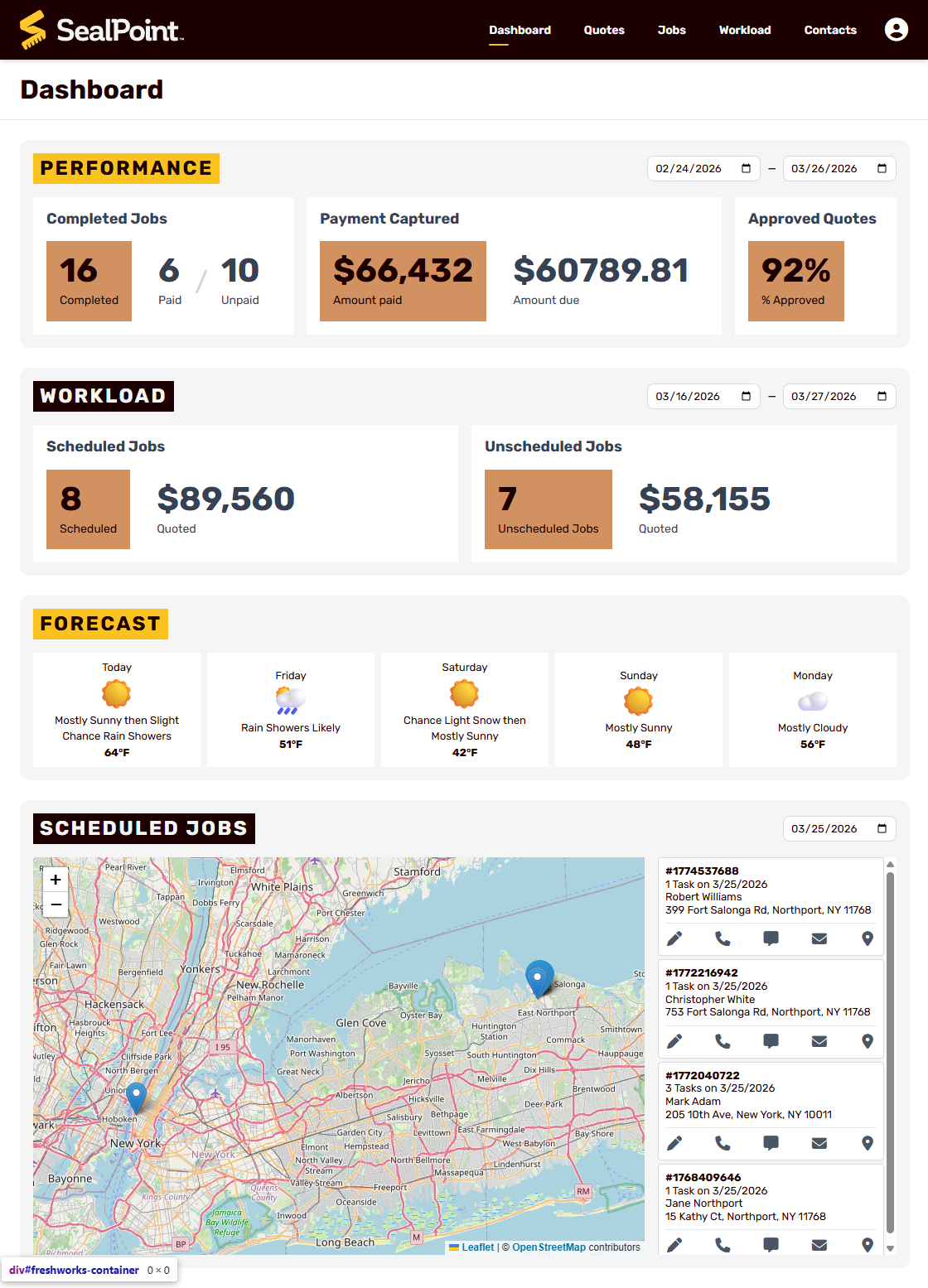
Administrator View Includes:
Revenue & financial data
Full job Performance overview
Full Workload overview
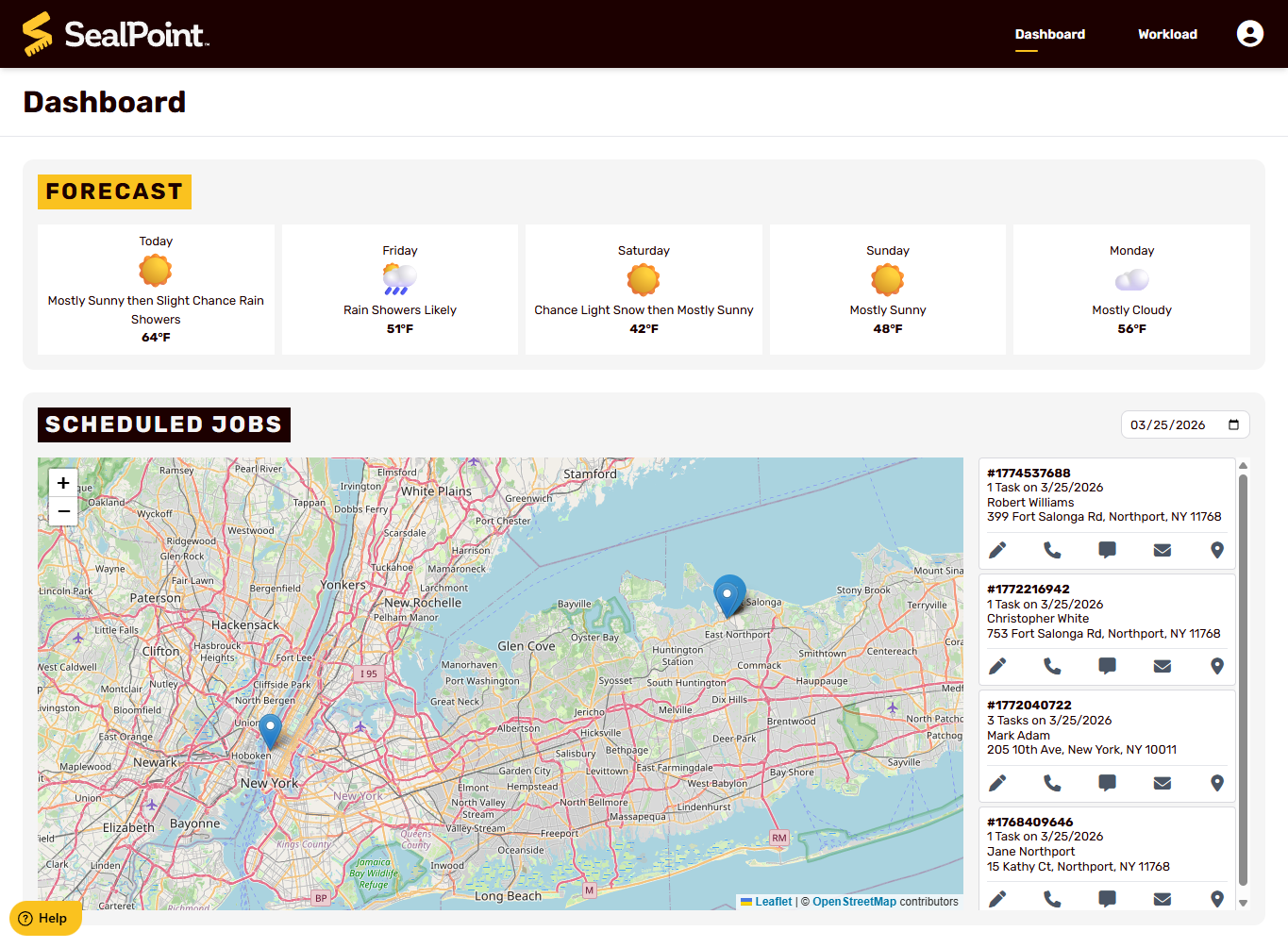
Non-Administrator View Includes:
Weather
Their assigned jobs only
Recommended Team Setup
A common way to set up permissions for a team is:
Owner / Admin
- Administrator
Office Manager
- Manage Contacts
- Manage Jobs
- Manage Quotes
- (Optional) Manage Users
Crew Member
- View Assignments only
This setup keeps access organized while ensuring everyone has what they need to do their job.
Summary
SealPoint permissions control what users can see and what they can do in the system. By inviting users and assigning the correct permissions, you can protect your business data, keep your workflow organized, and make the app easier for each team member to use.
If you need help inviting users or setting permissions, contact us at support@getsealpoint.com.
Was this article helpful?
That’s Great!
Thank you for your feedback
Sorry! We couldn't be helpful
Thank you for your feedback
Feedback sent
We appreciate your effort and will try to fix the article