Service Items allow you to define the services and products your business offers, along with the price you charge. Customizing your service items ensures accurate price calculation on quotes and a faster, more consistent quoting process.
Accessing Service Items
To manage your service items, first go to My Organization from the top-right menu of the toolbar.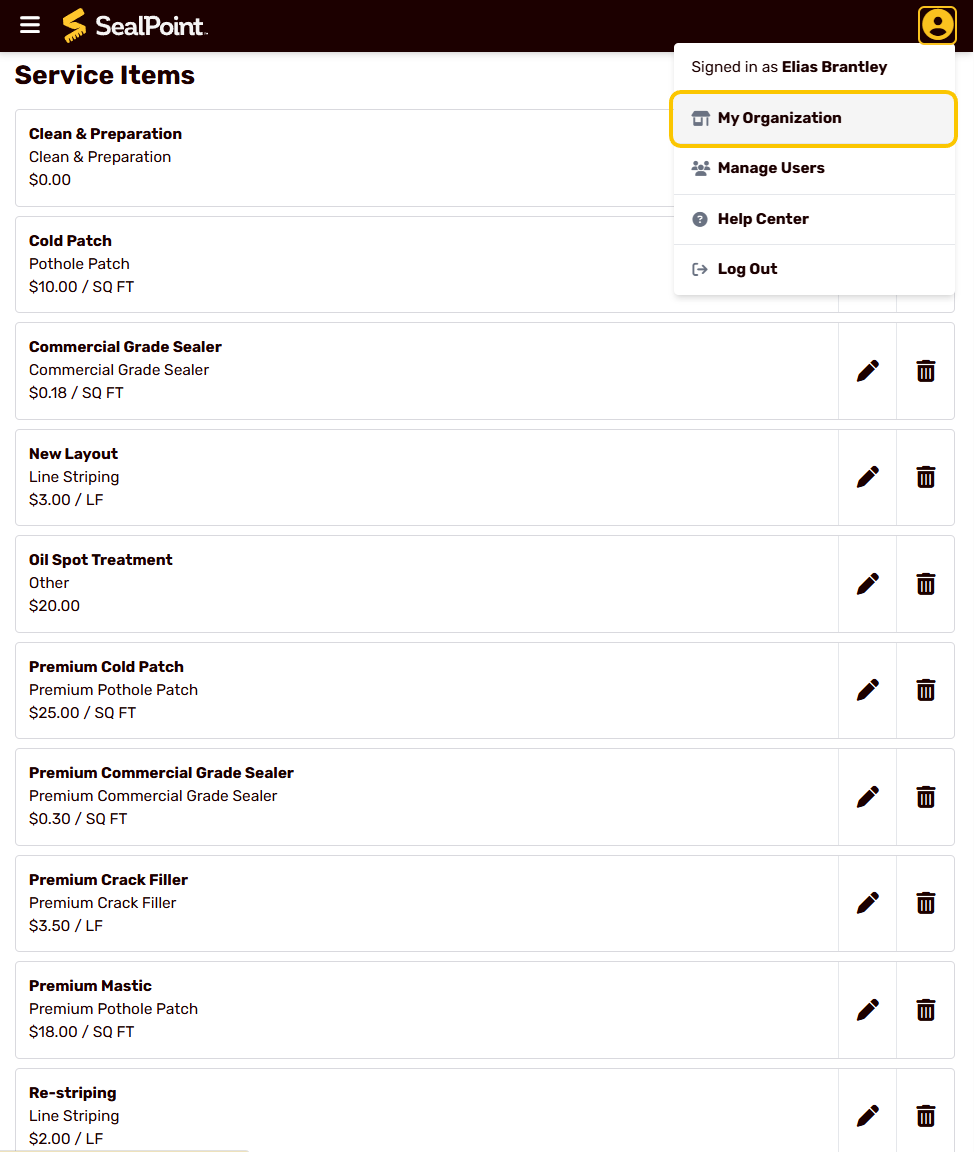
On this page, you’ll see a list of default service items created for your account. These items can be edited, repriced, or removed based on your business needs.
Editing an Existing Service Item
To update the name or pricing of a service item:
From the Service Items list, select the pencil iconnext to the item you want to edit.
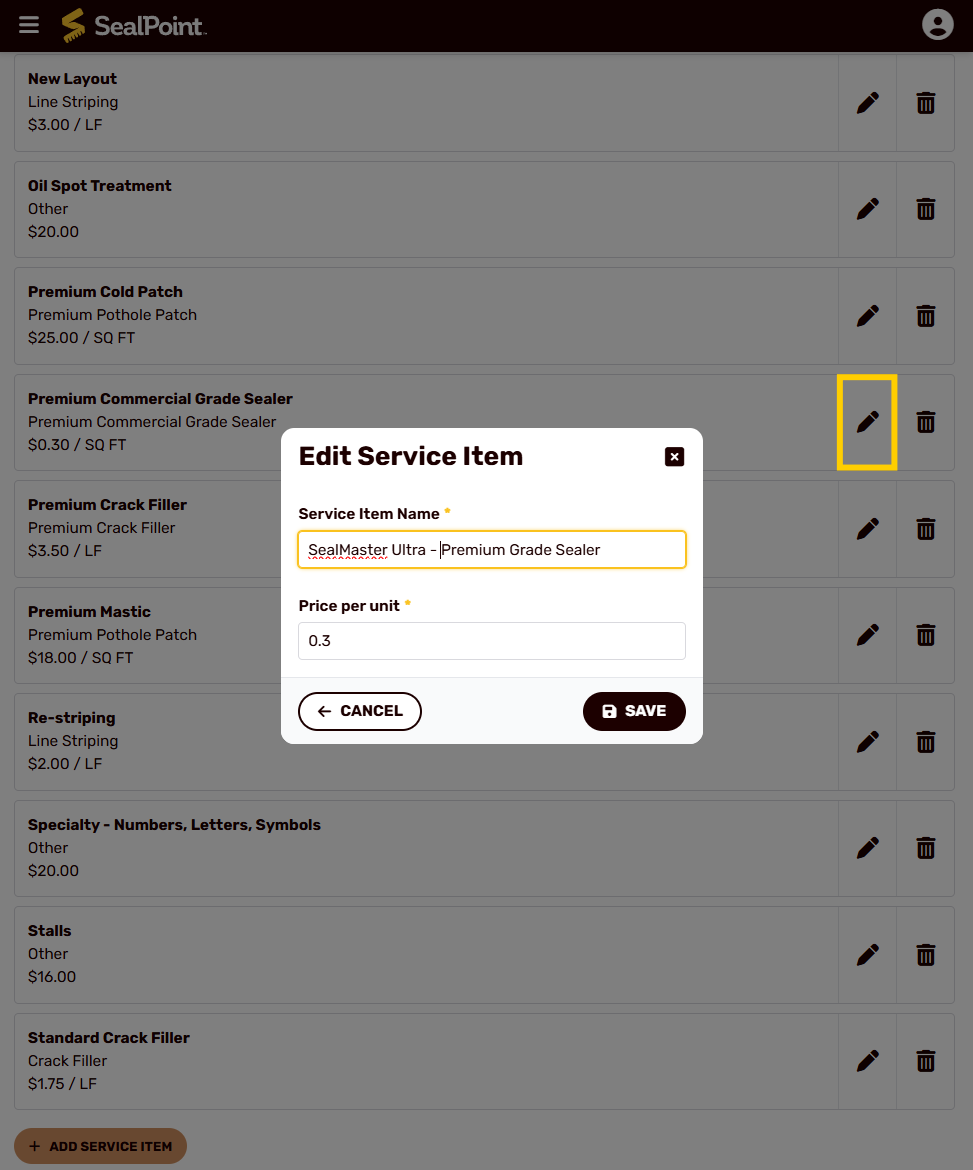
The Edit Service Item window will appear.
Update the Service Item Name and Price per unit as needed.
Select Save to apply your changes.
The Price per unit determines how SealPoint calculates the total on a quote. Service Items appear as selectable options when creating a quote. For example, if Premium Commercial Grade Sealer is priced at $0.30 per square foot and the sealing job is 1,000 sq. ft., SealPoint will automatically calculate the cost at $300. This base information can also be used to account for additional coats by adjusting the quantity as needed. Because of this, it’s important to review and update your service items to match your pricing.
Adding a New Service Item
After you’ve finished updating the default services and need to add new service items:
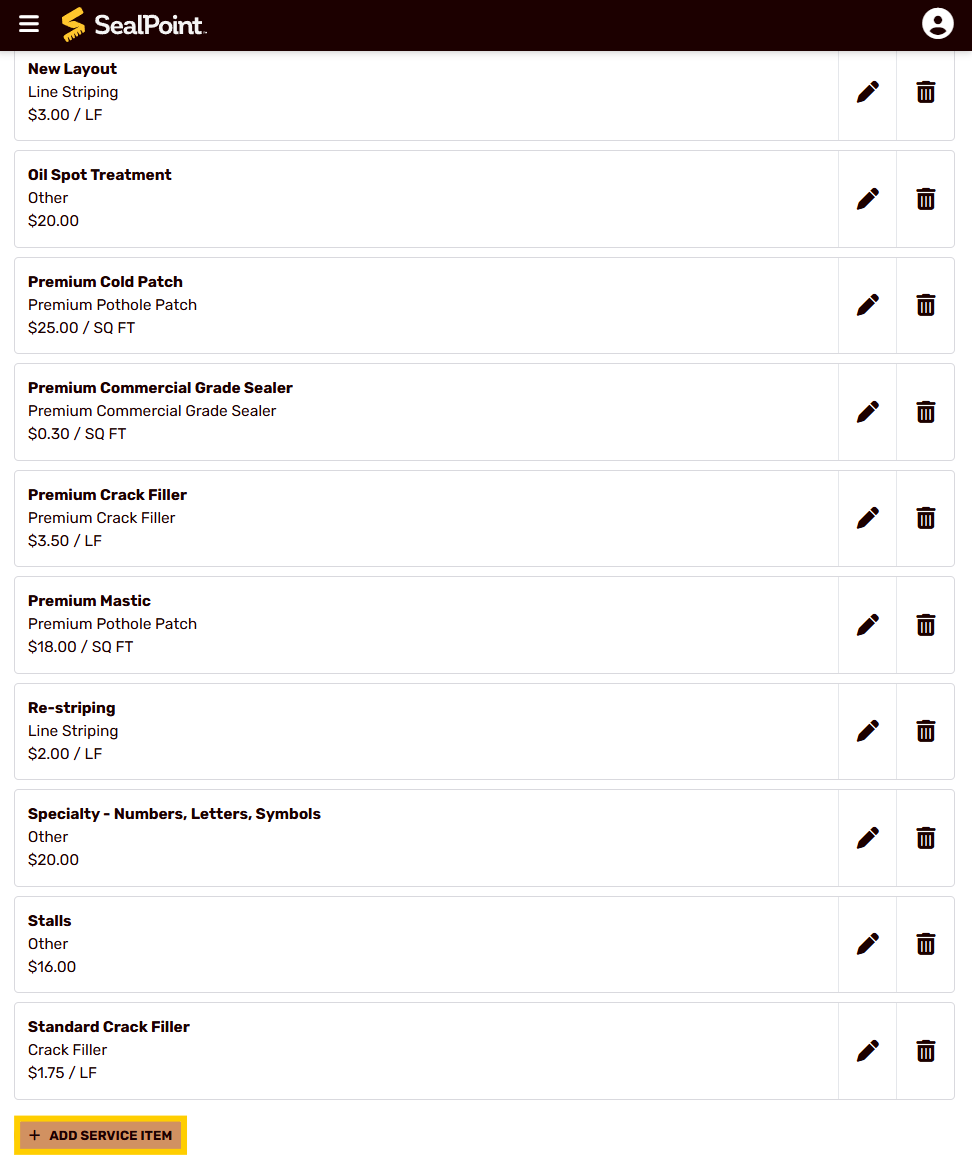
Select the Add Service Item button, located in the bottom left corner beneath the existing list.
Choose the Service Item Type from the dropdown (e.g., Sealer, Crack Filler, Line Striping, etc).
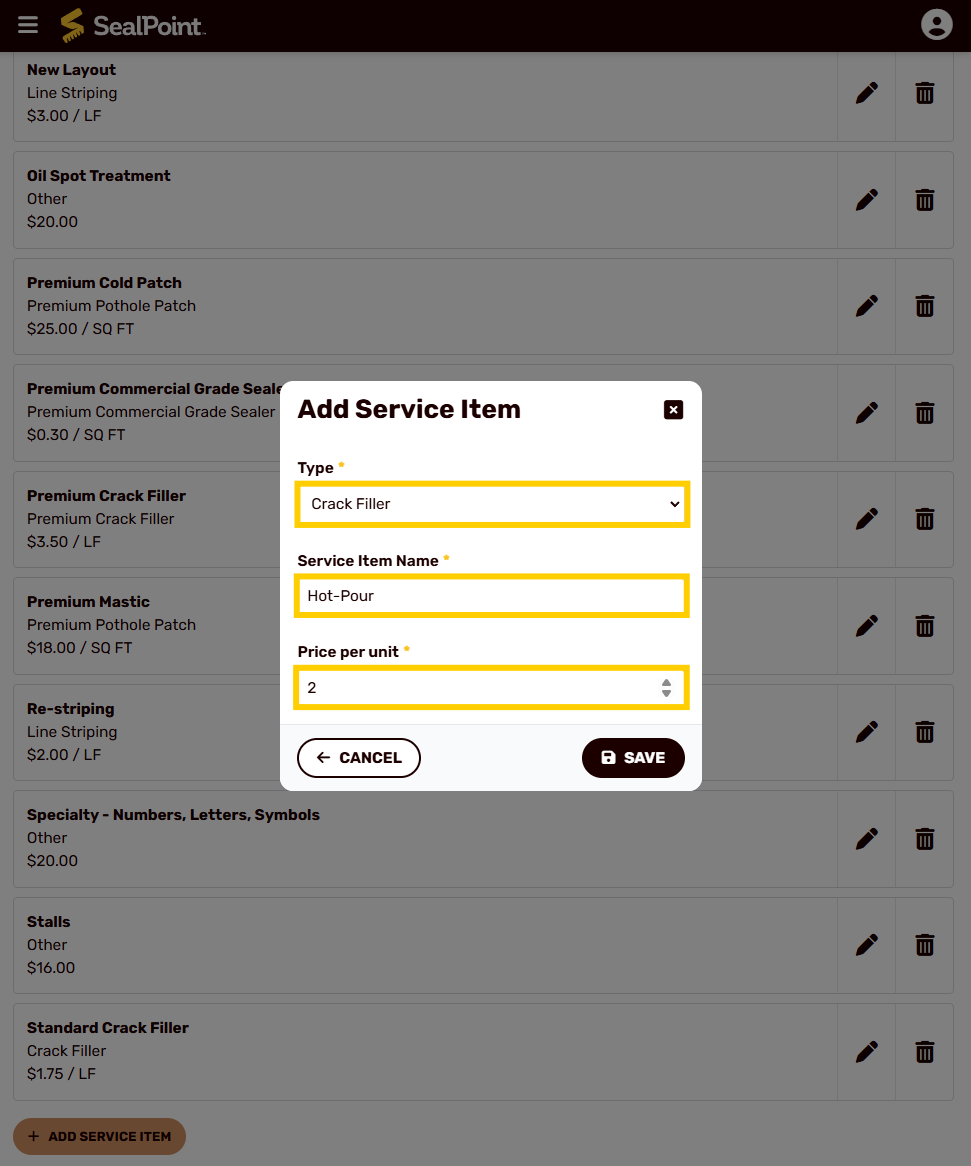
Enter the service name (e.g., “Hot Pour" Crack Fill).
Enter the price per unit and select Save.
Adding custom service items ensures your quotes are accurate and consistent with your business offerings.
Deleting a Service Item
If you no longer offer a service:
From the Service Items list, select the trash icon next to the item.

Confirm the deletion.
Deleted service items will no longer appear in the quote builder.
Using Service Items in a Quote
Once your service items are set, they will appear in the Service Items dropdown when creating a new quote.
To add service items to a quote:
Go to Quotes → New Quote.
After selecting a customer and completing the driveway measurement, navigate to the Service Items section.
Open the dropdown and select your desired service item.
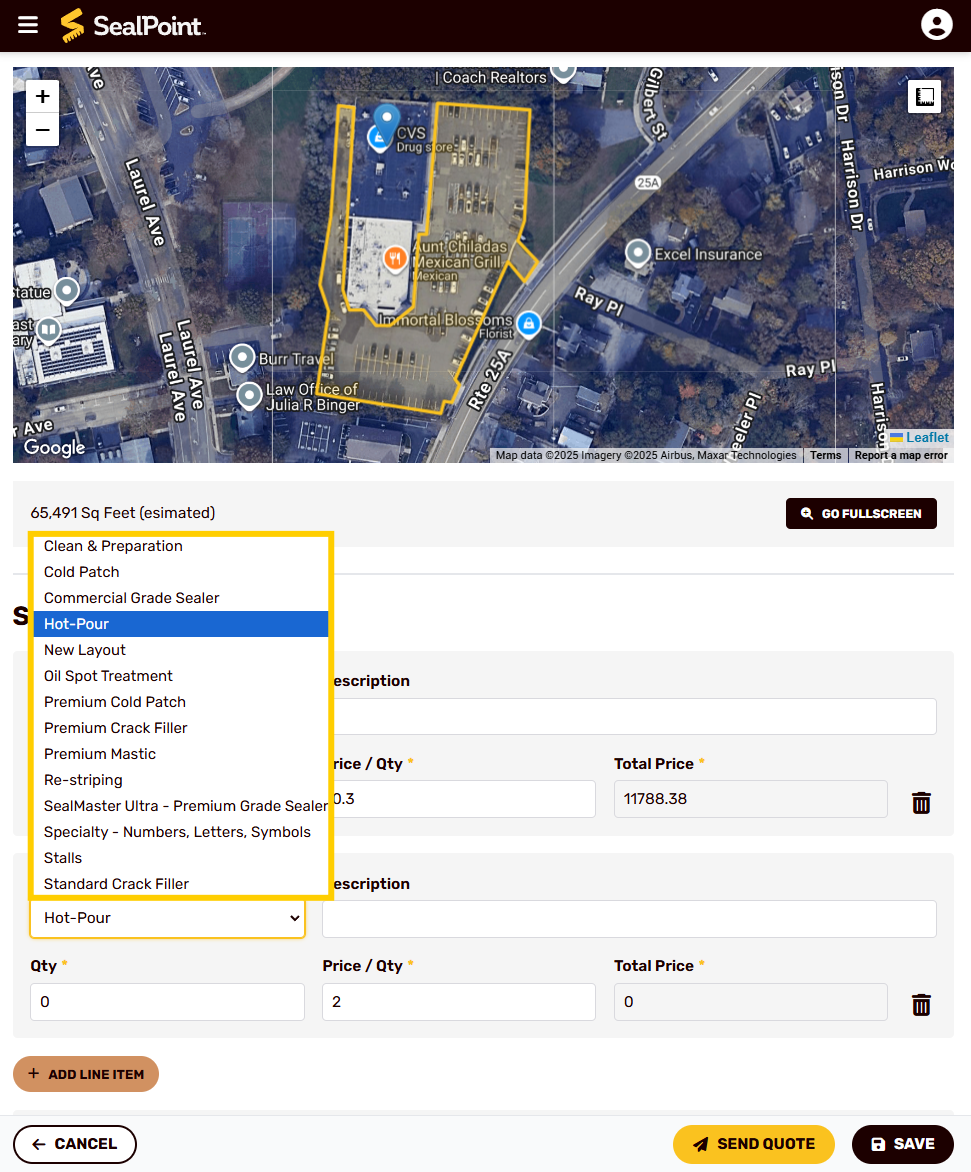
Enter the Qty, which should reflect the unit of measurement for that service (e.g., linear footage).
SealPoint will automatically calculate the line item total using:
Price per unit × Quantity
This helps ensure consistency across jobs and reduces manual math.
Why Customizing Service Items Matters
Keeping your service items updated allows you to:
- Provide fast, accurate quotes
- Ensure all team members price jobs consistently
- Automatically calculate totals without manual entry
- Reduce quoting errors and improve professionalism
Customizing this list based on your business offerings simplifies your workflow and makes SealPoint work the way your company operates.
Summary
Service Items power SealPoint’s quoting and pricing features. By setting accurate names, units, and prices, you ensure your quotes are consistent, professional, and fast to create. Once configured, your service items appear in the quote builder, allowing SealPoint to automatically calculate totals based on square footage, linear footage, or job-based pricing.
If you have any questions or need help updating your service items, contact us at support@getsealpoint.com
Was this article helpful?
That’s Great!
Thank you for your feedback
Sorry! We couldn't be helpful
Thank you for your feedback
Feedback sent
We appreciate your effort and will try to fix the article