Once a customer approves a quote, it becomes available to schedule as a job. Scheduling a job allows you to assign a service date, choose the crew member(s) responsible for completing the work, and automatically notify the customer. SealPoint makes it easy to schedule a single job or multiple jobs at once, helping your team stay organized and focused.
Accessing Jobs Ready to Be Scheduled
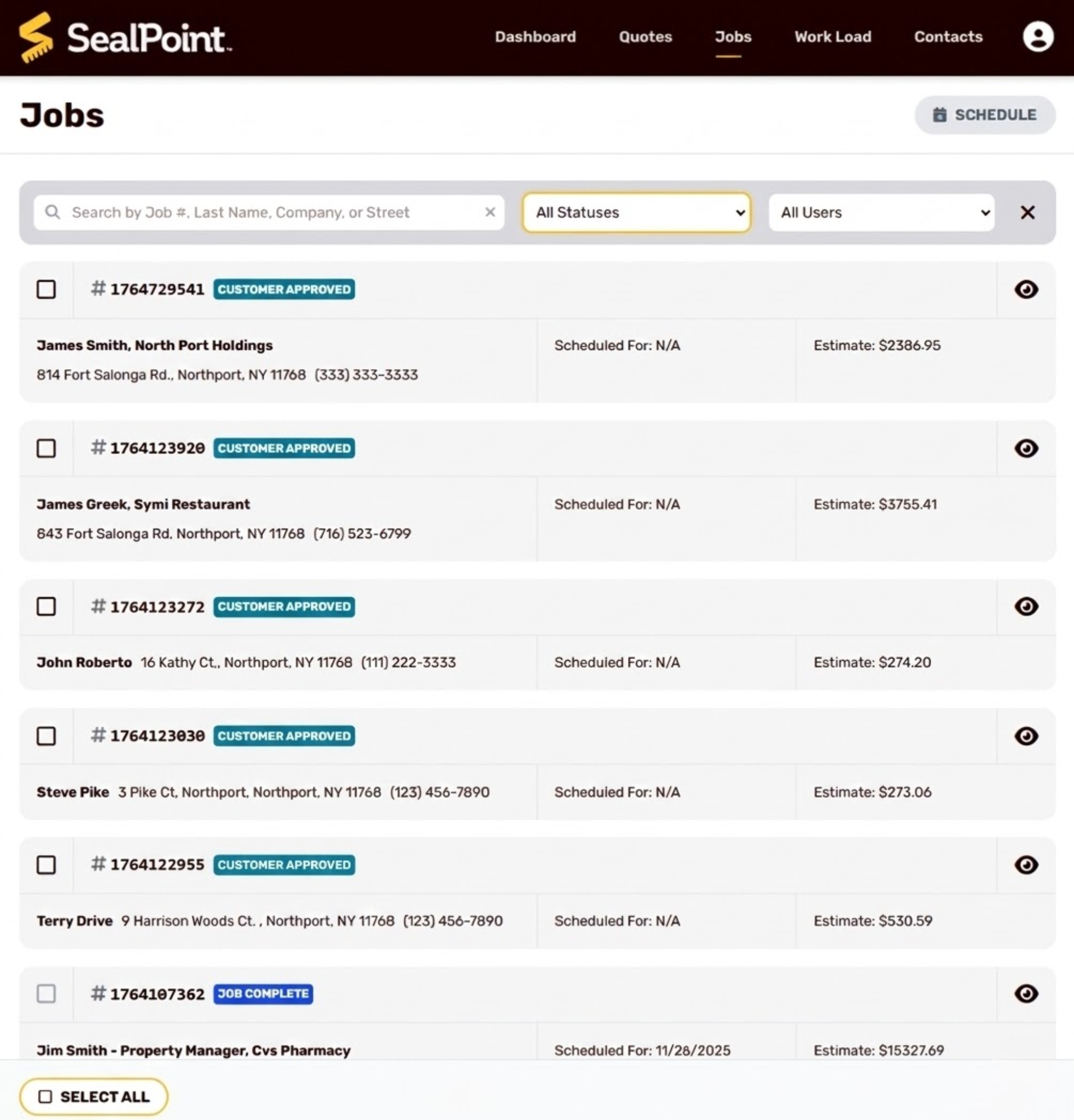
From the top toolbar, go to Jobs to open the Jobs section. Here, you can view jobs of any status.
To locate a specific job, use the search bar to look up by Job #, customer last name, company name, or street address.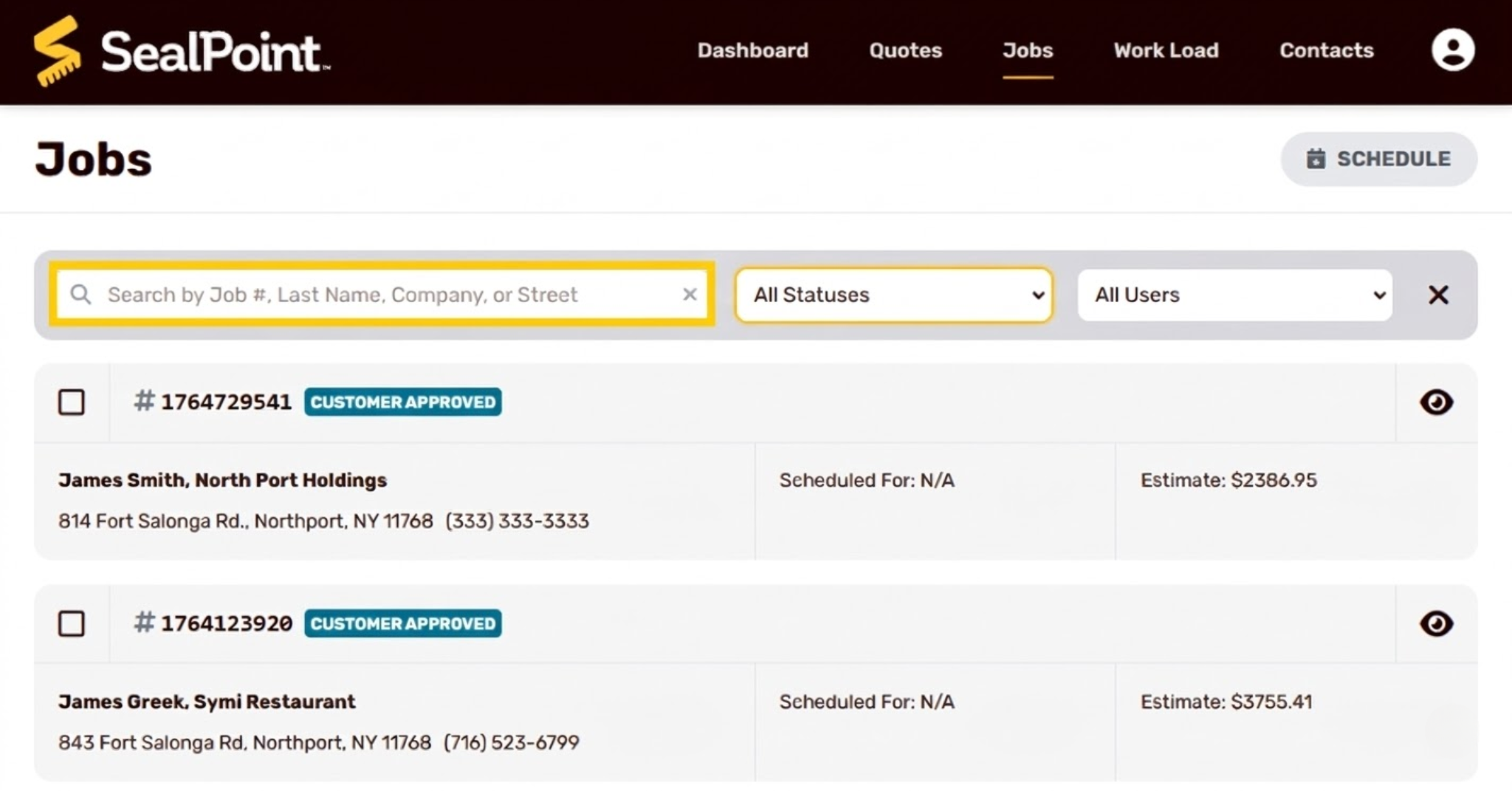
Jobs with a Customer Approved status are ready to be scheduled. To view only these jobs, use the status filter and select Customer Approved.
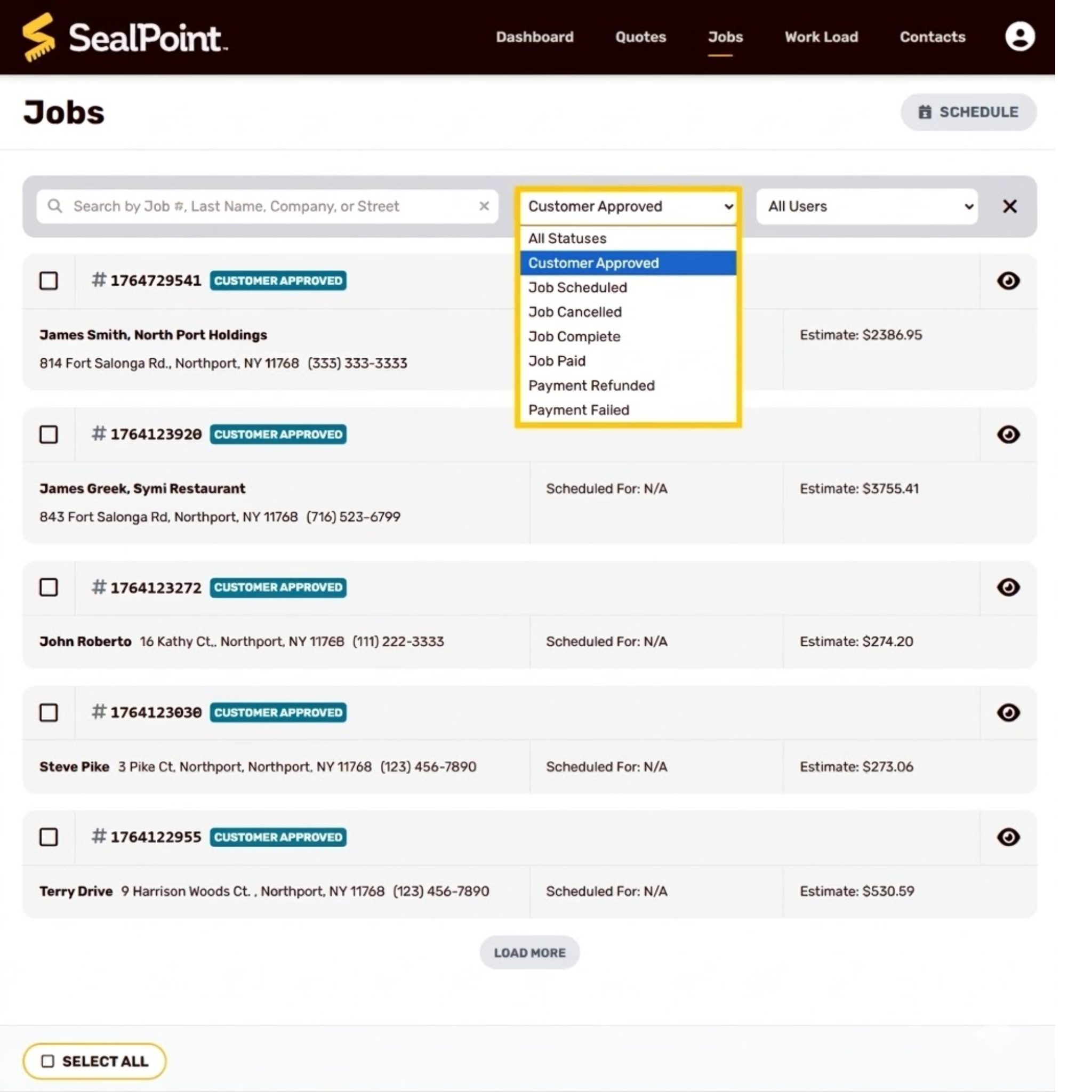
This will display only the jobs that still need scheduling.
Selecting Jobs to Schedule
When the list is filtered to show Customer Approved jobs, select the job you want to schedule. To schedule multiple jobs at the same time, select more than one from the list. Selected jobs will display a checkmark.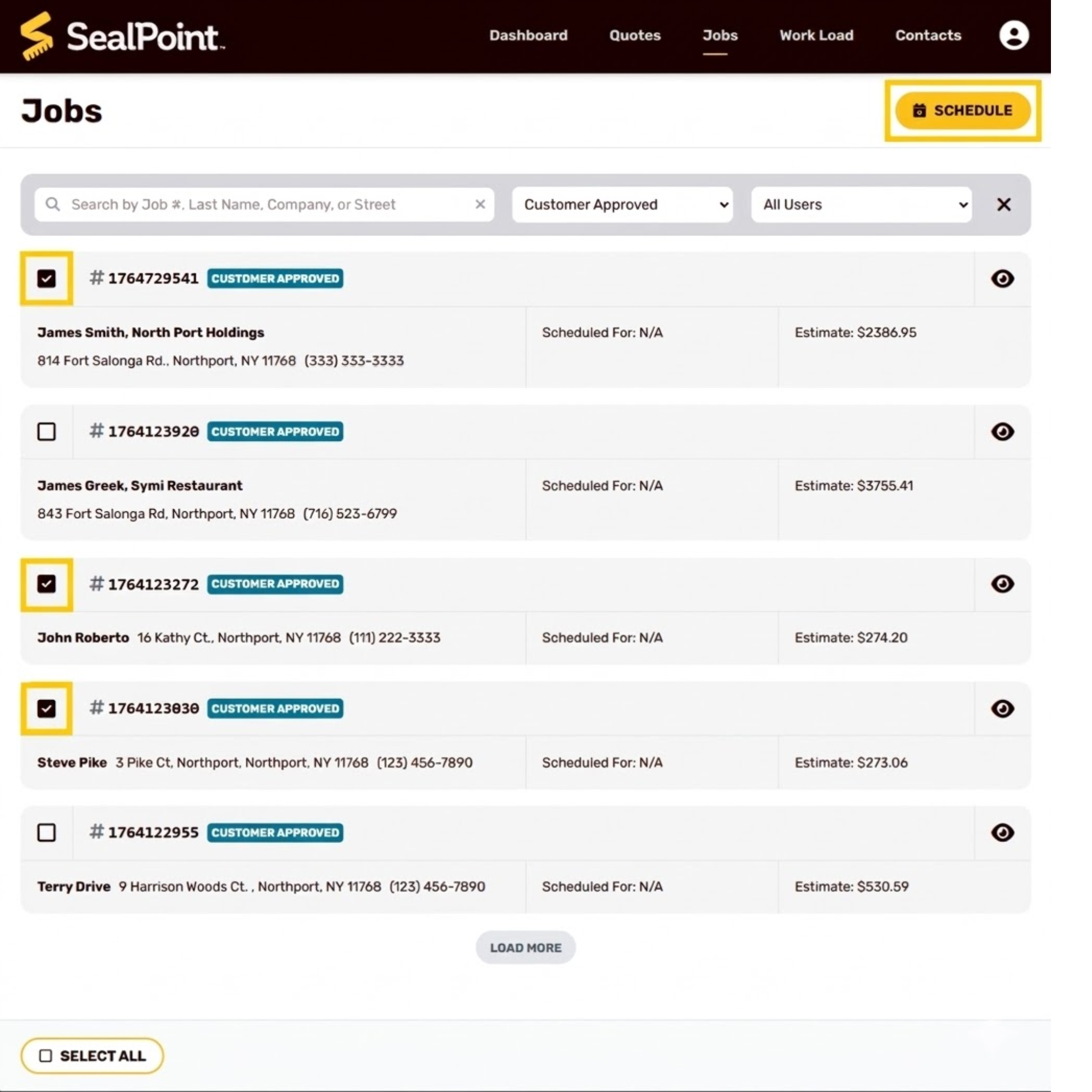
Once you’ve selected the jobs you want to assign, click Schedule to continue.
Choosing a Date
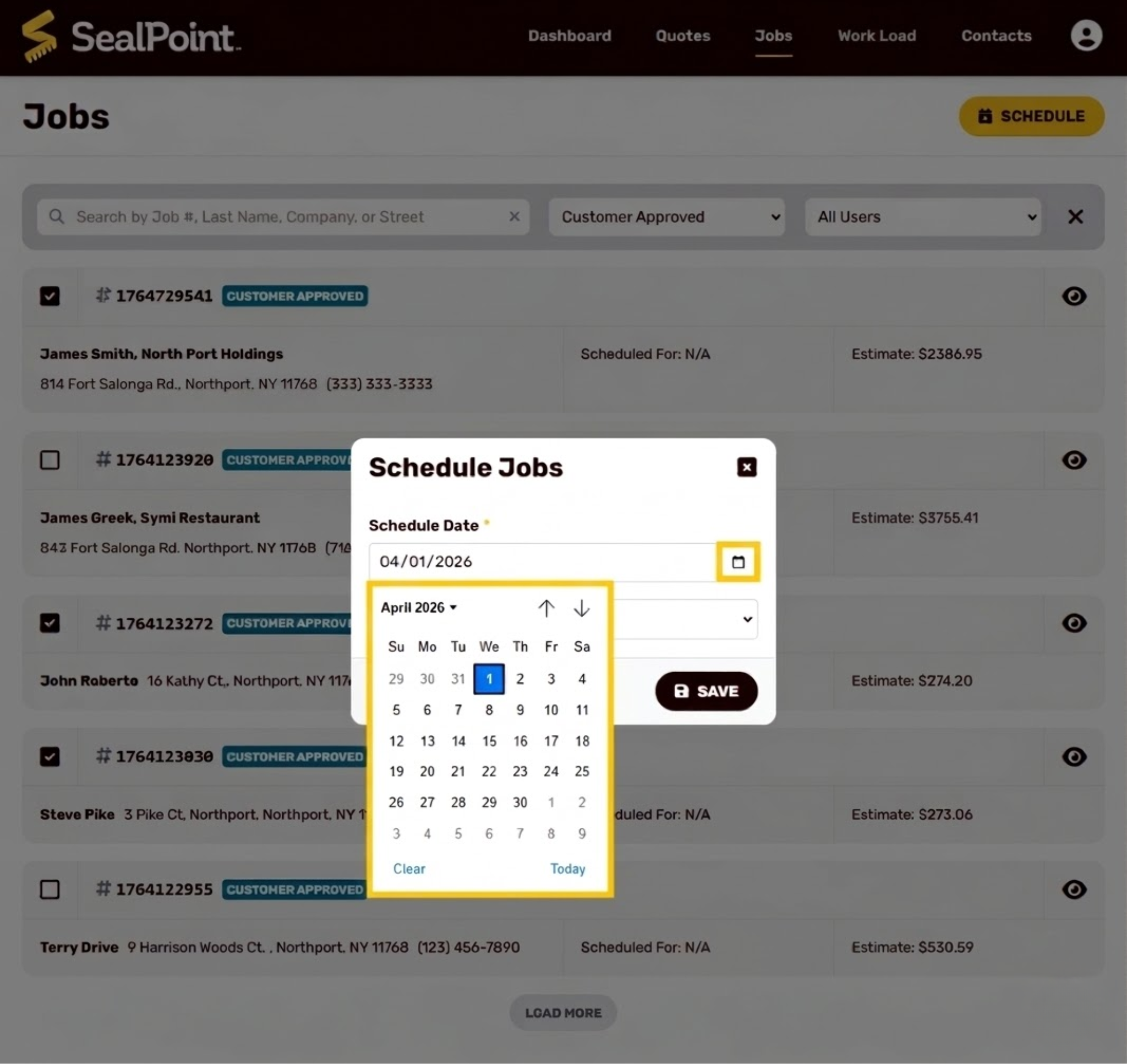
Select the service date for the job(s) using the calendar. When scheduling multiple jobs at once, all selected jobs will be assigned with the same service date. After choosing the date, continue to the optional crew assignment step.
Assigning Crew Members
After selecting a date, choose a crew member who will complete the job(s):
All Users – The job appears in every team member’s Work Load.
Specific User – The job appears only in the selected crew member’s Work Load .
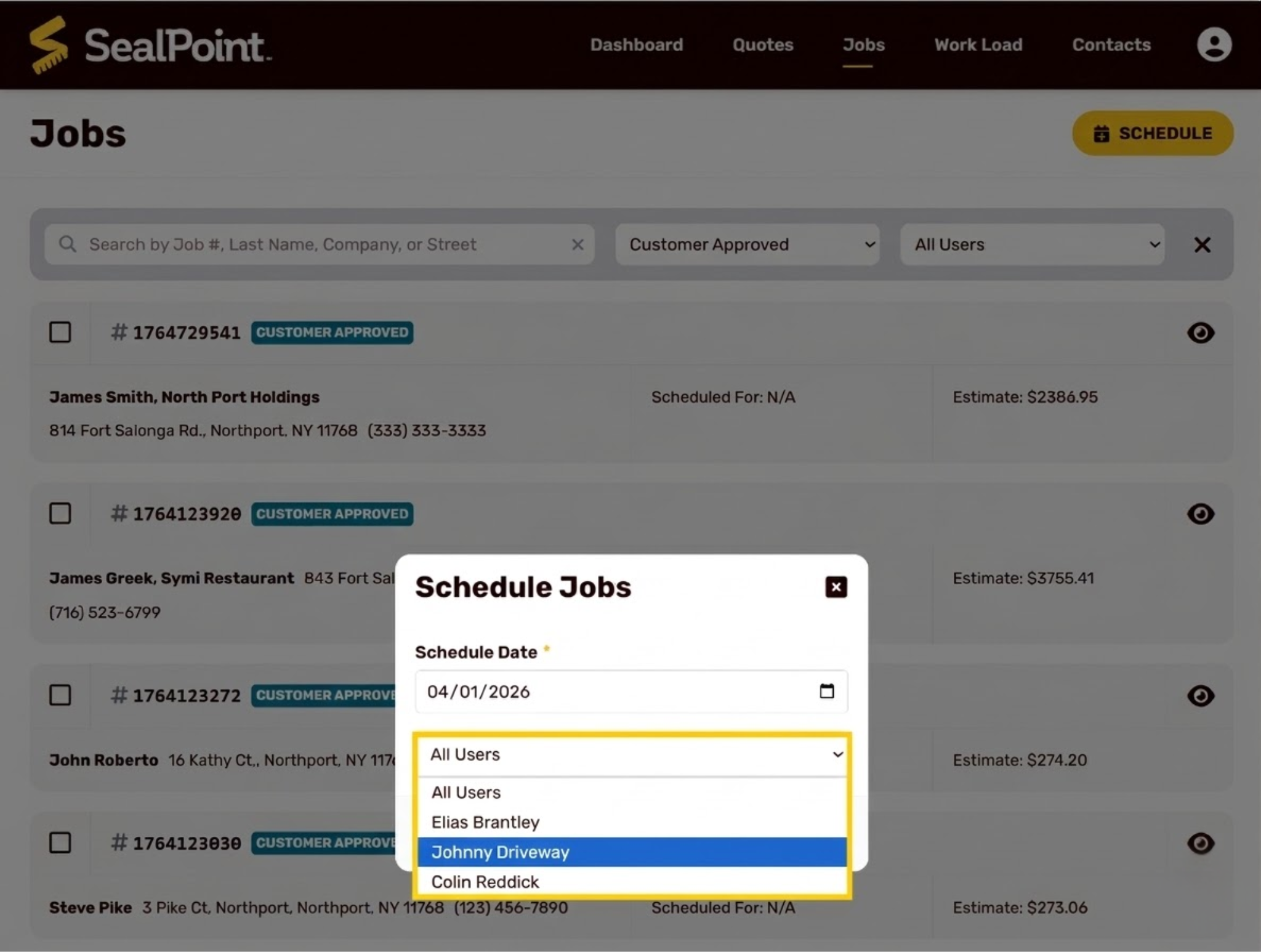
Assigning the correct user ensures your crew members see only the jobs they are responsible for when they log in.
Once the jobs are assigned, they will appear in the Work Load. You can use the Date and User filters to see the schedule for a specific day and understand the workload assigned to each crew member. 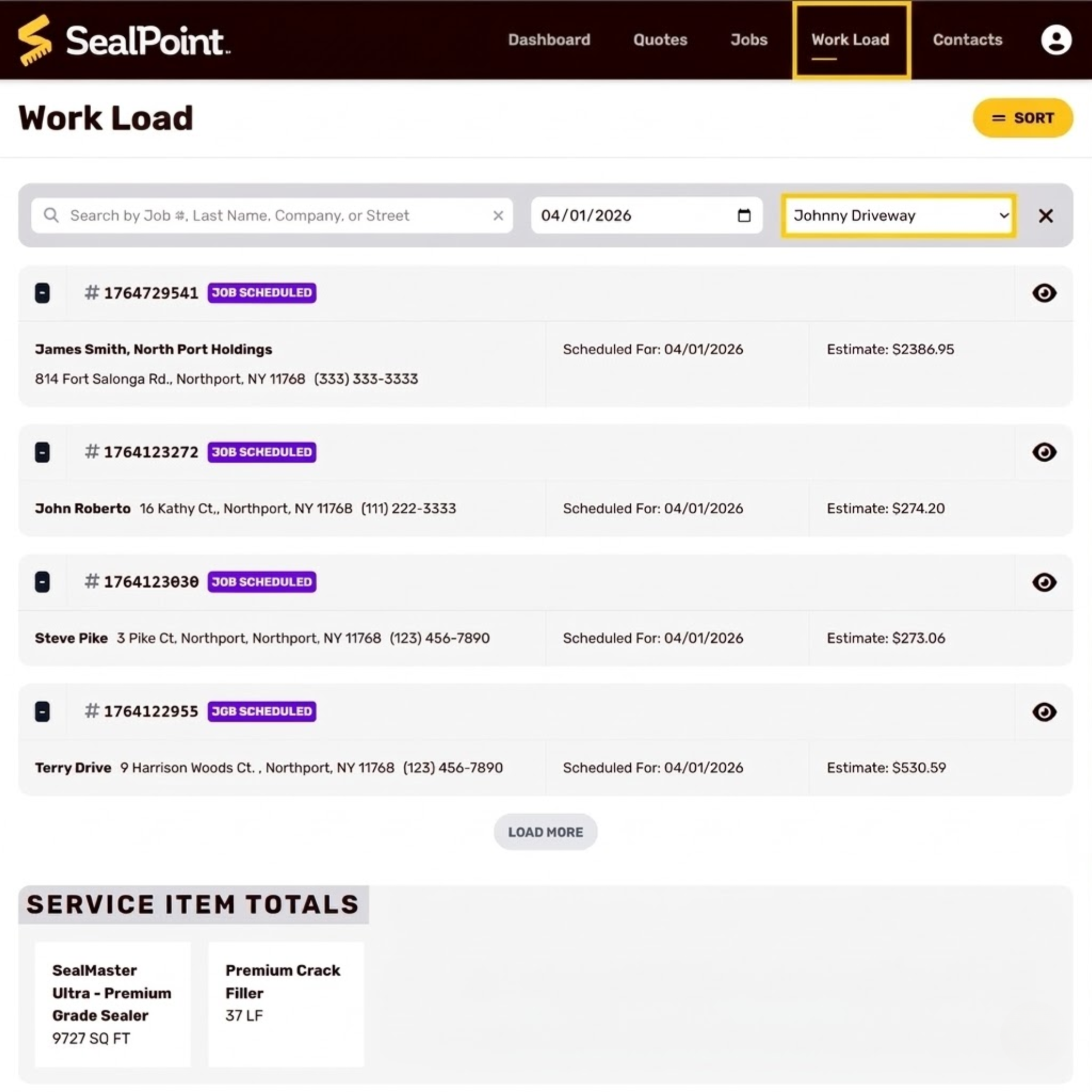
Customer Notifications
When a job is scheduled, SealPoint automatically sends a notification to the customer. This notification is delivered by email, SMS, or both—based on the customer’s Notification Preferences selected when their contact was created or updated.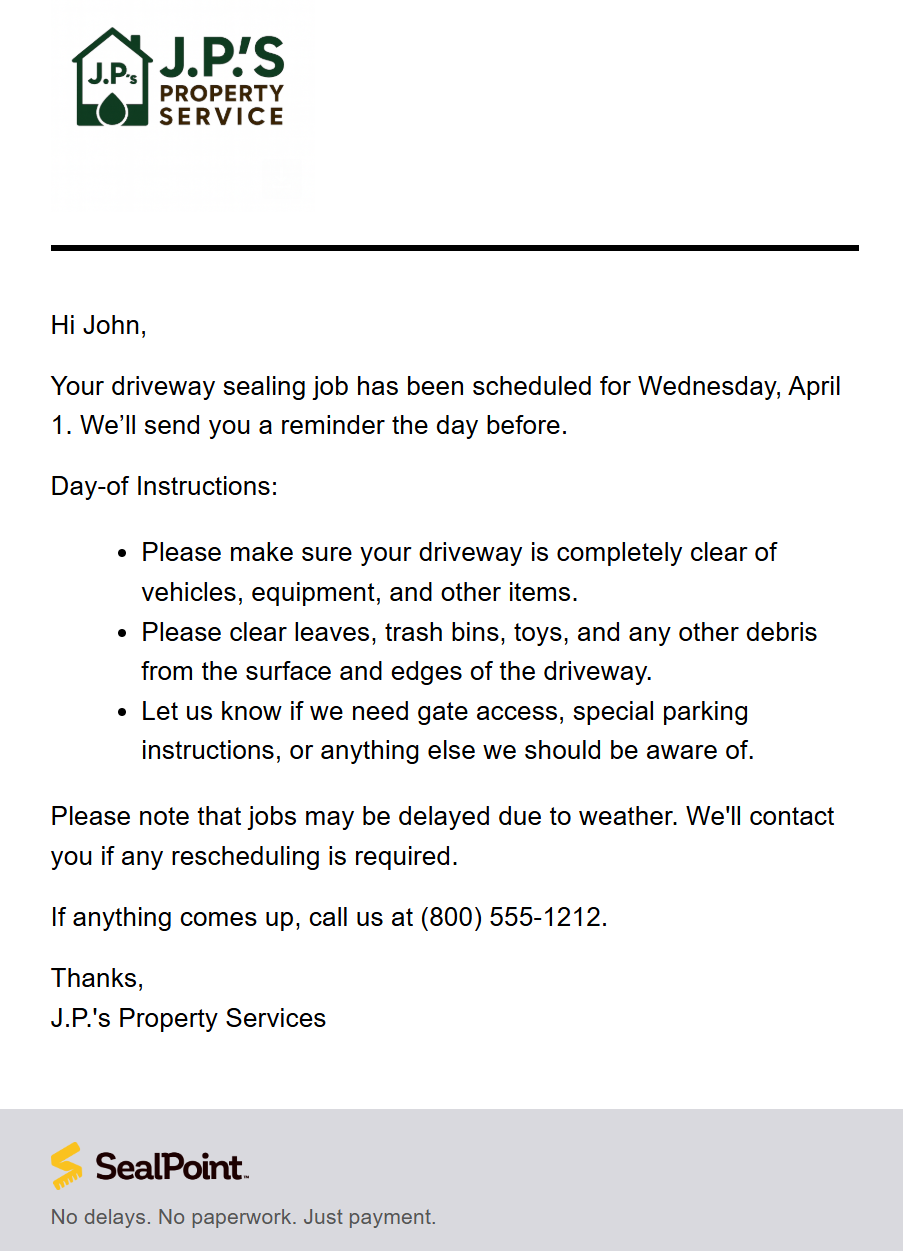
Customers also receive a 24-hour reminder before their scheduled appointment, but only if the job was scheduled at least two days in advance. Same-day and next-day jobs do not generate reminder notifications.
Editing or Rescheduling Jobs
If plans change, scheduled jobs can be updated:
Change the scheduled service date at any time by repeating the same steps you used when first scheduling the job.
- Assign the job to a different crew member
- Unassign a job temporarily (set it back to Customer Approved status)
These updates can be made directly from the job’s detail page or from highlighting a job(s) and selecting the Schedule option.
Bulk Scheduling Best Practices
When scheduling multiple jobs:
• Select jobs in the same general service area when possible
• Assign bulk jobs to the same user or crew
• Review estimated square footage totals in the Work Load to plan materials
This helps crews prepare and reduces unnecessary travel time.
Summary
Scheduling jobs in SealPoint is a straightforward process that helps your team stay organized and ensures customers receive timely updates about their appointments. By filtering Customer Approved jobs, selecting one or multiple jobs, assigning a date and crew, and relying on automatic notifications, you can efficiently manage your upcoming workload. Once scheduled, jobs flow directly into the Work Load of the assigned crew, keeping your crew informed and ready for the day’s work.
Was this article helpful?
That’s Great!
Thank you for your feedback
Sorry! We couldn't be helpful
Thank you for your feedback
Feedback sent
We appreciate your effort and will try to fix the article