SealPoint gives your business a custom quote request link that customers can use to request a quote online.
This link can be shared anywhere customers find your business, including your website, Facebook page, social posts, emails, text messages, QR codes, yard signs, business cards, vehicles, and email signatures.
When a customer submits a request, the request flows directly into SealPoint so you can review the details and follow up from one place.
Where to Find Your Quote Request Link
To find your custom quote request link:
- Go to My Organization
- Select the Settings tab
- Scroll to the Public Quote URL section
- Copy your custom quote request link
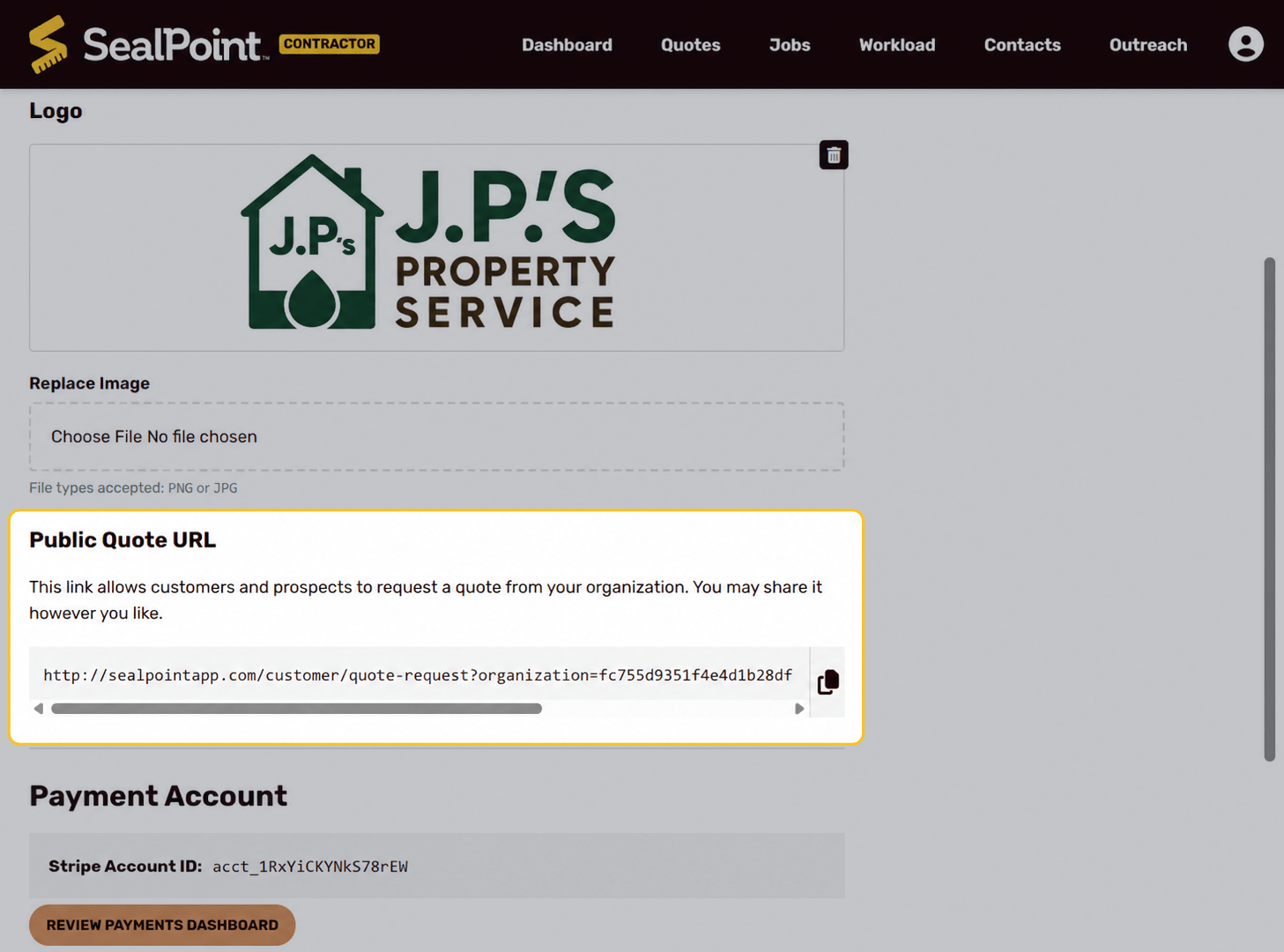
Your Public Quote URL is unique to your organization. This is the link customers will use to submit quote requests directly to your business.
Sharing Your Quote Request Link
Once copied, your quote request link can be shared anywhere you want customers to request a quote from your business.
For example, you can add the link to:
- Your website
- Your Facebook page
- Social media posts
- Emails
- Text messages
- QR codes
- Yard signs
- Business cards
- Vehicles
- Email signatures
This gives customers a simple way to request a quote without calling, texting, or sending a message through a separate platform.
Adding the Link to Your Website
You can add your quote request link to your website as a Request a Quote or Get Quote button.
When a customer clicks the button, they will be taken to your SealPoint quote request form.
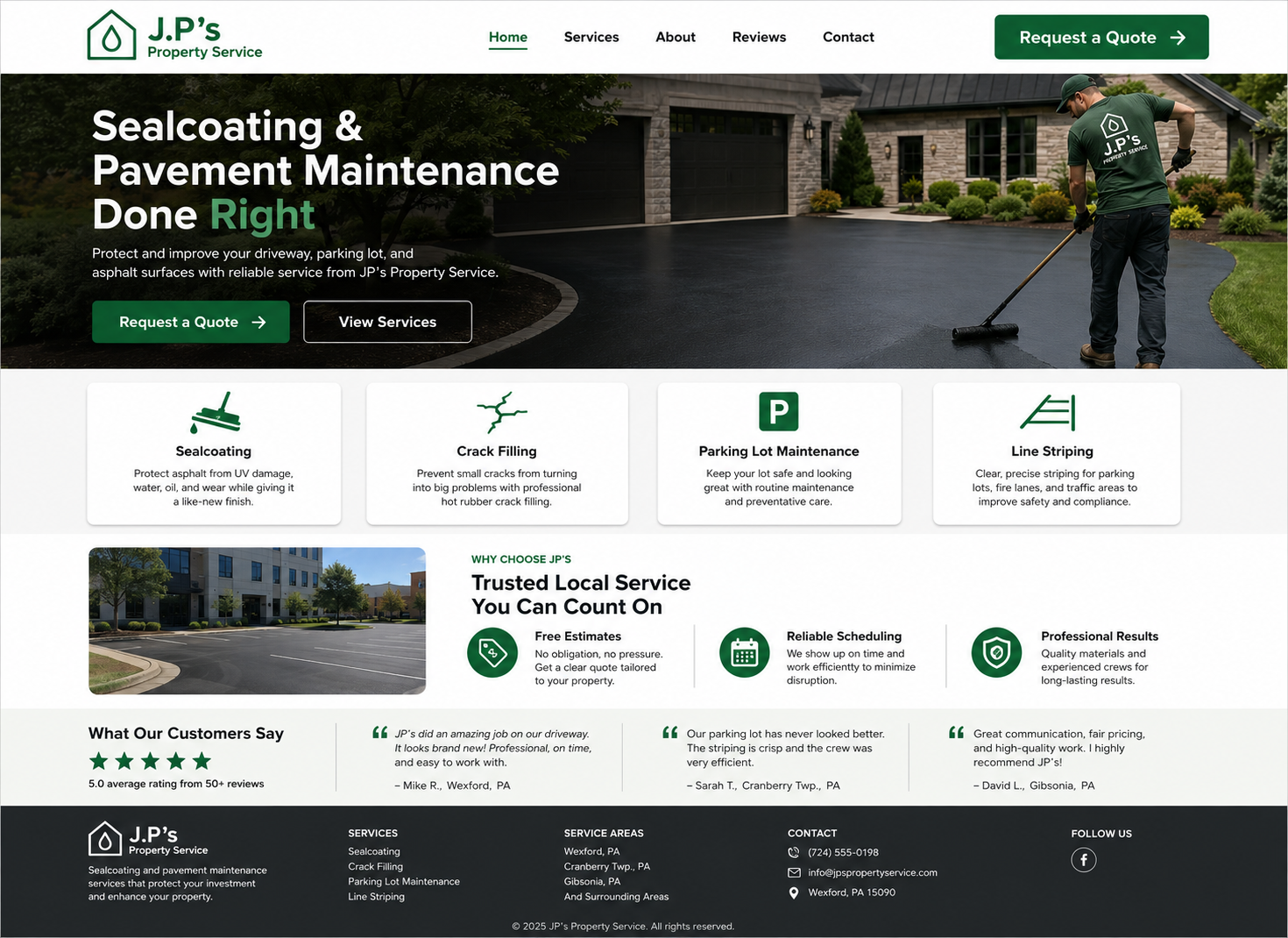
This is useful if customers visit your website to learn about your services and are ready to request an estimate.
Adding the Link to Social Pages
Your quote request link can also be added to your Facebook page, social posts, or other online profiles.
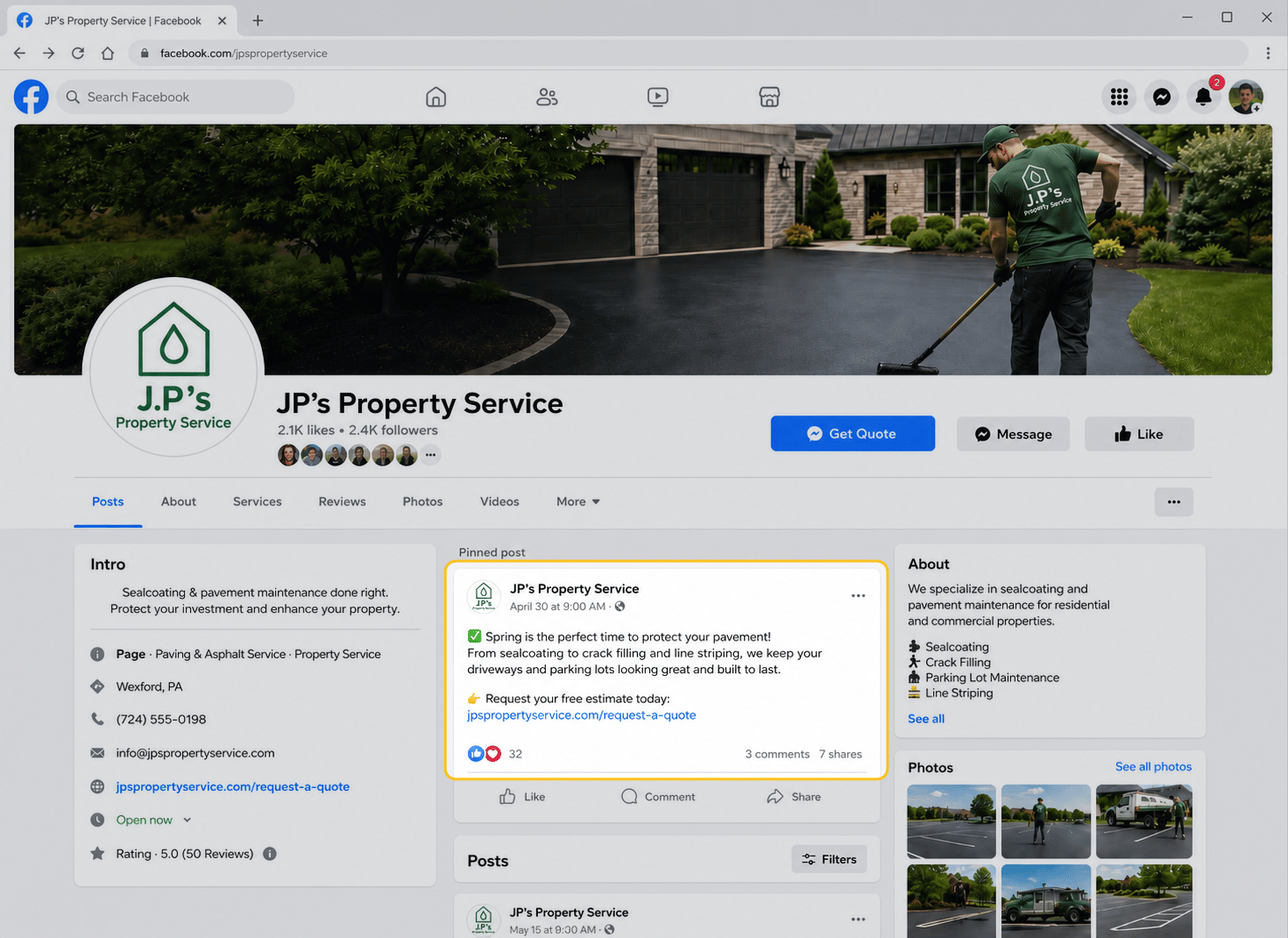
This gives customers an easy way to request a quote when they find your business online.
Using QR Codes
Your quote request link can be turned into a QR code and used on printed or physical materials.
For example, you may choose to add a QR code to:
- Yard signs
- Business cards
- Vehicles
- Flyers
- Door hangers
- Email signatures
- Other marketing materials
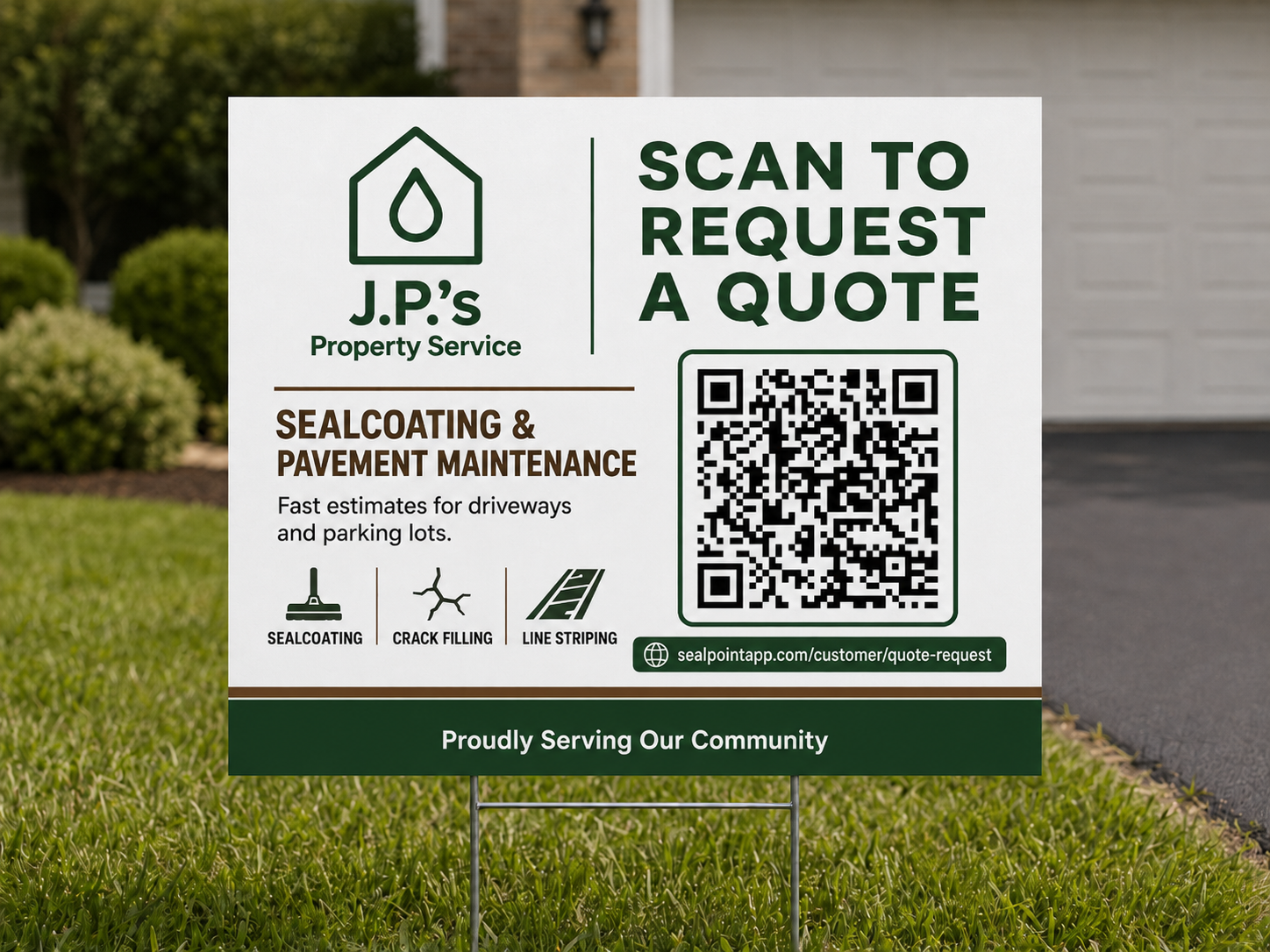
When a customer scans the QR code, they can open the quote request form and submit their information online.
What Customers See
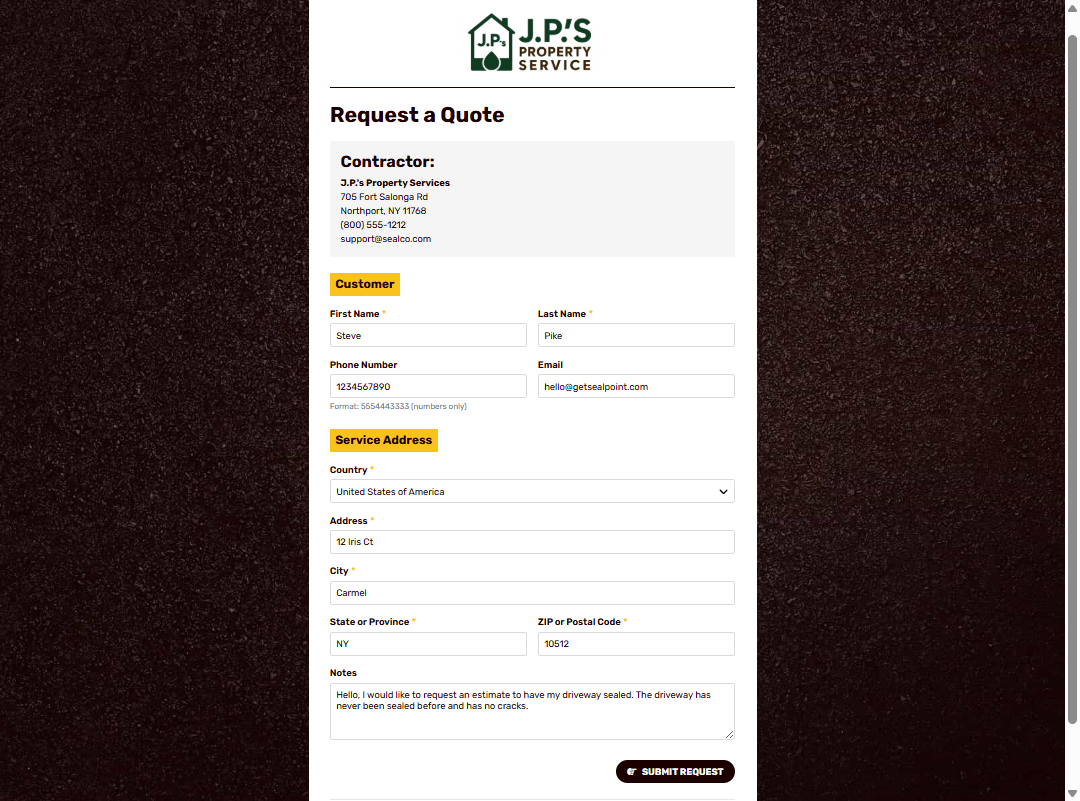
When a customer opens your quote request link, they will see a request form where they can enter their contact information, property address, and details about the work they need.
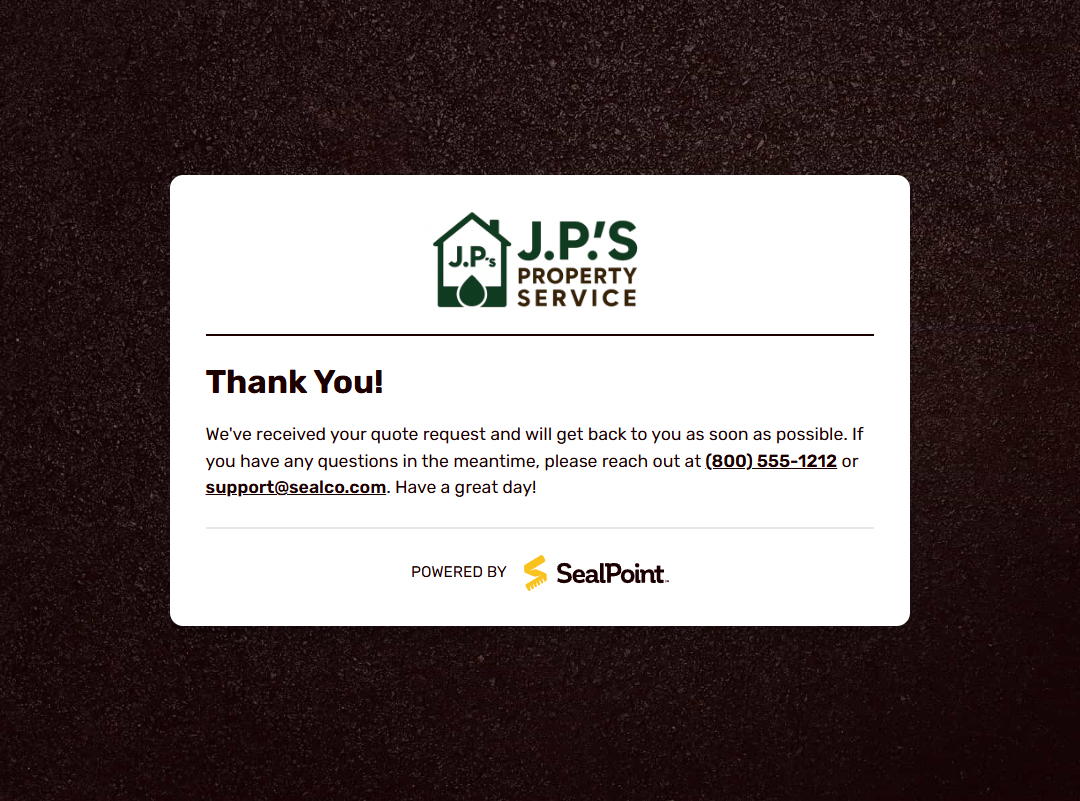
After the form is submitted, the customer will see a confirmation message letting them know their request was received.
New Quote Request Notifications
When a new quote request is submitted, SealPoint sends a notification so you know a customer has requested a quote.
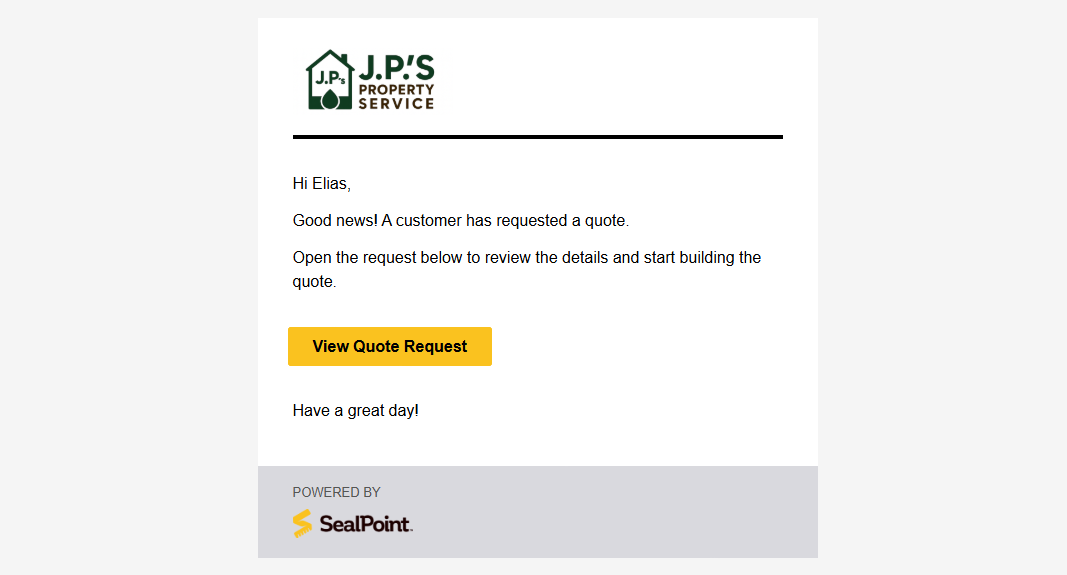
This helps make sure new requests do not get missed.
Viewing Quote Requests in SealPoint
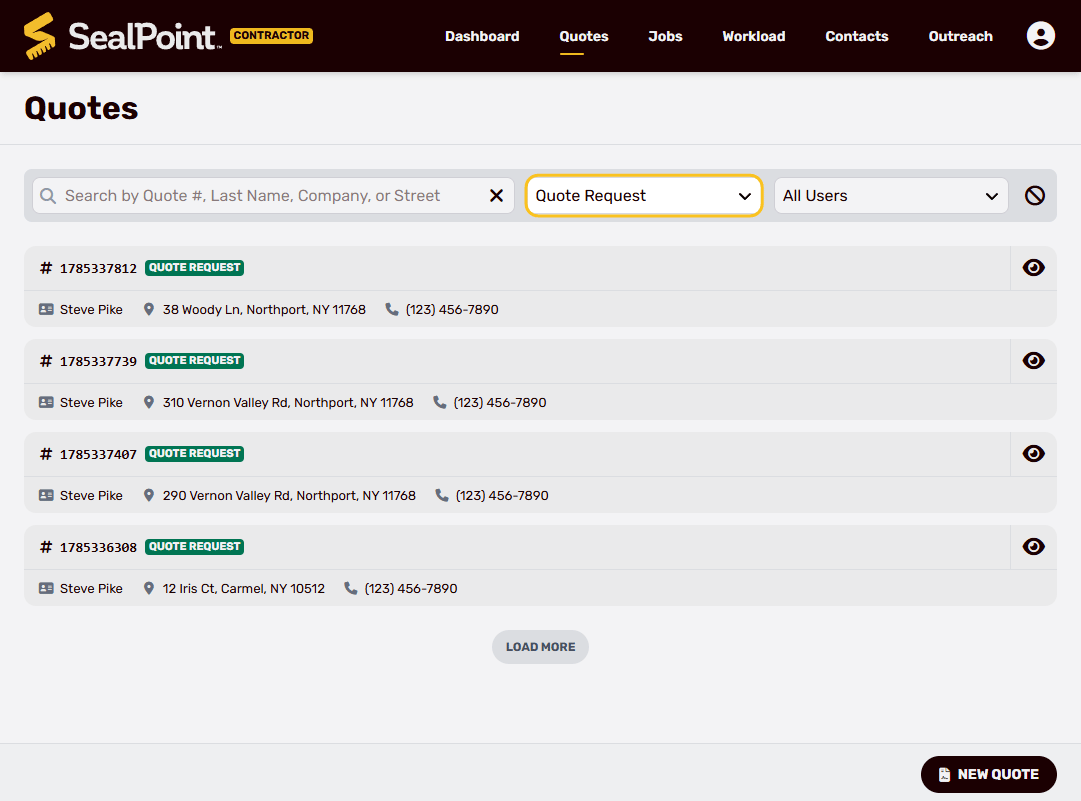
Submitted quote requests appear in your Quotes list with a Quote Request status.
To find quote requests:
- Go to Quotes
- Use the Quote Request status filter
- Open the request to review the customer information and project details
Important Notes
- Your Public Quote URL is unique to your organization.
- The link can be shared anywhere customers can click or scan it.
- Quote requests submitted through the link appear in your Quotes list with a Quote Request status.
- SealPoint sends a notification when a new quote request is submitted.
- QR codes can be created from your quote request link and used on printed or physical marketing materials.
Summary
Your custom quote request link gives customers a simple way to request a quote online.
By sharing the link on your website, social pages, emails, texts, QR codes, and printed materials, you can bring new customer requests directly into SealPoint. Once submitted, requests appear in your Quotes list so you can review the details and follow up from one place.
Was this article helpful?
That’s Great!
Thank you for your feedback
Sorry! We couldn't be helpful
Thank you for your feedback
Feedback sent
We appreciate your effort and will try to fix the article